Modern teams work from offices, homes, and different time zones, often on several projects at once. When messages are scattered across email, files live on personal laptops, and meetings happen without notes, important information gets lost, and work slows down.
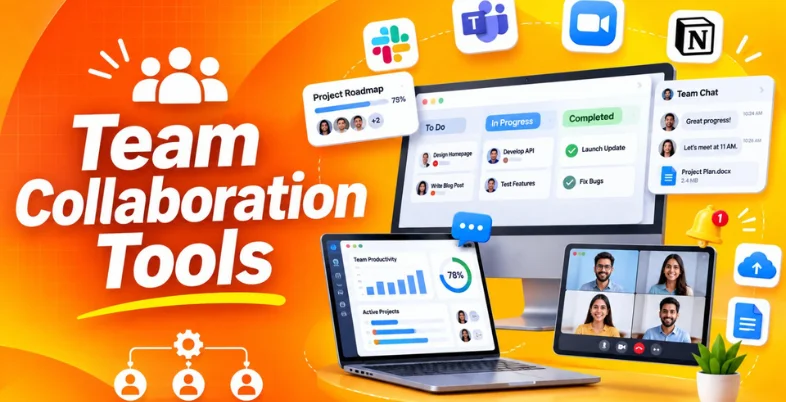
Team collaboration tools bring communication, files, tasks, and meetings into shared spaces where everyone can see the same information. The right tool reduces email overload, speeds up decisions, and keeps projects moving. This guide compares the 15 best team collaboration tools for 2026, covering messaging apps, video platforms, document workspaces, and project tools, so you can build the right stack for your team.
What Are Team Collaboration Tools?
Team Collaboration Tools are communication software applications designed to facilitate various modes of interaction and information exchange between groups and individuals. They offer communication components, such as chat modules, video conferencing, whiteboards, and document editing spaces, among other features.
Some platforms attempt to offer all-in-one solutions, while others specialize in a particular area, such as messaging services or project management. Many teams combine two or three tools, for example, a chat app, a document workspace, and a task tracker, connected through integrations.
Why Team Collaboration Tools Matter In 2026?
Remote and hybrid work is now normal, and teams are expected to move fast with fewer meetings. Without a shared digital workspace, collaboration becomes slow and frustrating.
- Faster Communication: Channels and chat replace long email threads, so questions get answered quickly in context.
- Centralized Information: Shared documents, files, and tasks help teams find the latest information and avoid version confusion.
- Better Remote Work: Video meetings, async updates, and shared boards keep distributed teams connected across time zones.
- Clear Accountability: Tasks, owners, and due dates show who is doing what, which reduces missed work.
- Automation: Bots and workflows handle routine updates, while AI tools for business help teams summarize meetings and plan more efficiently.
Key Features To Look For In Team Collaboration Tools
The best tools match how your team communicates and works, and connect smoothly with the other apps you use.
- Messaging & Channels: Organized channels and direct messages keep conversations searchable and focused.
- Video Meetings: Reliable video, screen sharing, and recordings support remote and hybrid teams.
- Document & File Collaboration: Real-time editing and shared storage let people work on the same files together.
- Task & Project Tracking: Boards, lists, and timelines show progress and deadlines.
- Integrations: Connections with calendars, CRM, storage, and project tools prevent teams from switching constantly between apps.
- Security & Admin Controls: Permissions, single sign-on, and audit tools protect company data.
Quick Comparison Table — Best Team Collaboration Tools
| Tool | Best For | Chat & Messaging | Video Meetings | Pricing Model |
| Slack | Chat-first teams with many integrations | Advanced | Huddles | Free plan, per user |
| Microsoft Teams | Microsoft 365 organizations | Yes | Yes | Free tier, per user |
| Google Workspace | Document-first teams | Yes | Yes | Per user, no free business plan |
| Zoom Workplace | Video-first hybrid teams | Yes | Advanced | Free plan, per user |
| Notion | Wikis, docs, and knowledge | Comments | No | Free plan, per user |
| Asana | Cross-team task tracking | Comments | No | Free plan, per user |
| monday.com | Visual workflows and dashboards | Comments | No | Free plan, per seat |
| ClickUp | All-in-one work platform | Yes | Limited | Free plan, per user |
| Trello | Simple Kanban boards | Comments | No | Free plan, per user |
| Basecamp | Simple all-in-one for small teams | Message boards | No | Per user or flat fee |
| Miro | Visual brainstorming and workshops | Comments | Limited | Free plan, per member |
| Mattermost | Secure, self-hosted messaging | Advanced | Calls | Free tier, per user |
| Loom | Async video communication | No | Recorded video | Free plan, per user |
| Dropbox | File sharing and storage | Comments | No | Per user |
| Lark | All-in-one suite with generous free tier | Yes | Yes | Free plan, paid tiers |
List of Top 15 Team Collaboration Tools
1. Slack
- Website: https://slack.com/
- Best for: Chat-first teams that want organized channels and a huge integration ecosystem
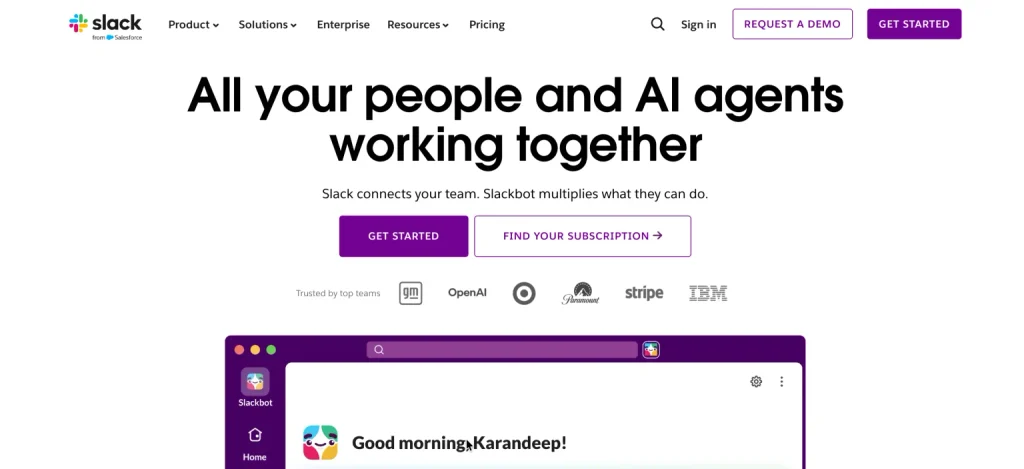
Slack is one of the most widely used platforms for team communication. It allows arranging messages in channels depending on the project, team, or topic. Additionally, the app offers temporary voice or video calls known as Huddles.
Its large app directory connects Slack to hundreds of tools, and the Slack Connect feature lets you create channels with external partners. The free plan limits message history, and notification overload can become a problem without clear channel habits.
Key Features:
- Organized Channels
- Direct Messages And Huddles
- Slack Connect For Partners
- Large Integration Directory
- Workflow Automation
Pros:
- Excellent For Real-Time Chat
- Huge App Ecosystem
- Easy To Learn
Cons:
- Free Plan Limits History
- Notification Overload
- Paid Plans Add Up
Pricing:
- Free: $0 per person/month
- Pro: $7.25 per person/month
- Business+: $15 per person/month
- Enterprise+: Custom pricing
2. Microsoft Teams
- Website: https://www.microsoft.com/en-us/microsoft-teams/group-chat-software
- Best for: Organizations that already use Microsoft 365 and want chat, meetings, and files in one place
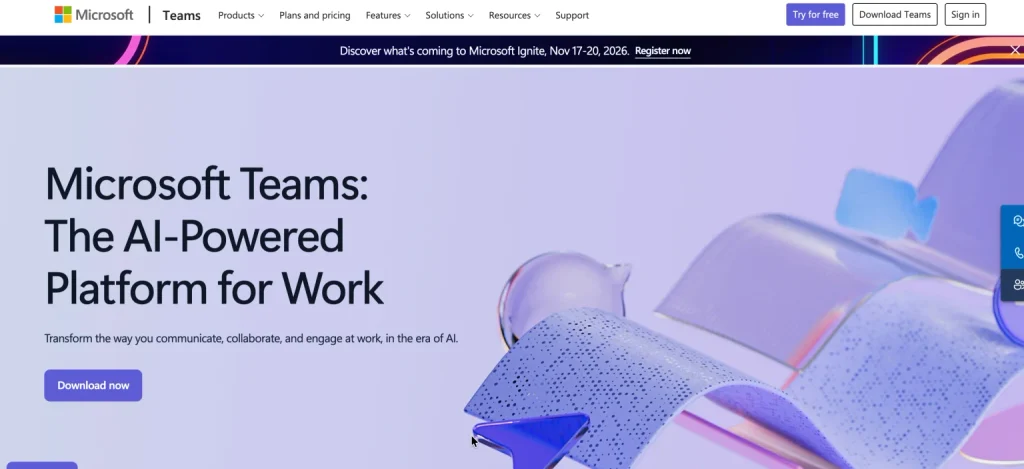
Microsoft Teams is a collaboration space where you can chat, meet via video, share files, and work together on Word, Excel, PowerPoint, SharePoint, and OneDrive documents. It is usually the simplest choice for organizations that are already paying for Microsoft 365 since it comes as part of the subscription.
Microsoft Teams provides advanced security and administrative controls and offers various AI-based features, including Microsoft Copilot. The tool can be complicated to use, and its interface may overwhelm new users. It is best suited for businesses that want to collaborate within the Microsoft environment since it is not as intuitive as Slack.
Key Features:
- Chat And Channels
- Video Meetings
- Microsoft 365 Integration
- SharePoint And OneDrive Files
- Copilot AI Features
Pros:
- Bundled With Microsoft 365
- Strong Security Controls
- Deep Office Integration
Cons:
- Can Feel Busy
- Best Inside Microsoft Ecosystem
- Copilot Costs Extra
Pricing:
- Microsoft Teams: Free
- Microsoft 365 Personal: $99.99 per year
3. Google Workspace
- Website: https://workspace.google.com/
- Best for: Document-first teams that work in Docs, Sheets, Slides, Gmail, and Drive
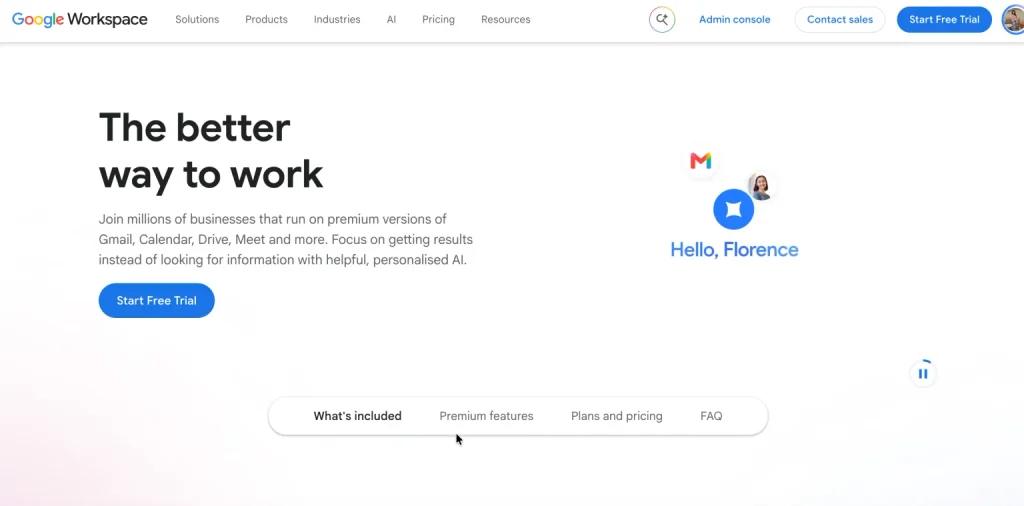
Google Workspace includes Gmail, Google Chat, Meet, Drive, Docs, Sheets, and Slides, providing a suite of tools. The main advantage is the possibility to edit documents in real time with multiple users.
Its integrated apps make it easy for teams to collaborate on documents, communicate, and manage files in one place. AI features can also help with writing and summarizing tasks. Workspace does not have a free business plan, and Google Chat and Projects are less developed than independent apps.
Key Features:
- Real-Time Document Editing
- Gmail And Google Calendar
- Google Meet Video
- Google Drive Storage
- Gemini AI Features
Pros:
- Excellent Document Collaboration
- Easy To Learn
- All-In-One Suite
Cons:
- No Free Business Plan
- Lighter Project Tools
- Chat Less Advanced Than Slack
Pricing:
- Base: ₹49.50/user/month
- Starter: ₹270/user/month
- Standard: ₹864/user/month
- Enterprise: Custom pricing
4. Zoom Workplace
- Website: https://www.zoom.com/
- Best for: Video-first hybrid teams and organizations that run many meetings and webinars
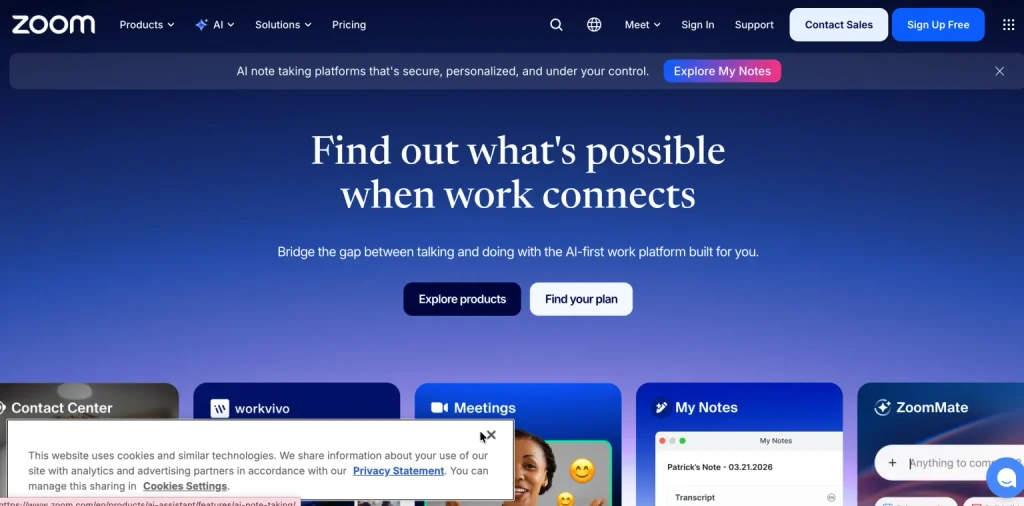
Zoom Workplace has evolved from a video conferencing platform into a collaborative suite offering team chat, whiteboards, documents, and an AI-powered Companion that summarizes meetings. Video conferencing remains its primary strength.
This tool is ideal for teams that spend long hours in meetings or need to conduct large-scale virtual events. The chat and project management features are less developed than in dedicated messaging or project management tools, so many teams use it in conjunction with a separate app for day-to-day tasks.
Key Features:
- High-Quality Video Meetings
- Team Chat
- Whiteboard And Docs
- AI Companion Summaries
- Webinars And Events
Pros:
- Reliable Video Quality
- Easy For Guests To Join
- Good AI Meeting Notes
Cons:
- Chat Is Less Advanced
- Free Plan Has Meeting Limits
- Costs Rise On Higher Plans
Pricing:
- Basic: Free
- Pro: ₹1,580/user/month
- Business: ₹2,045/user/month
5. Notion
- Website: https://www.notion.com/
- Best for: Teams that need wikis, documentation, notes, and flexible project databases
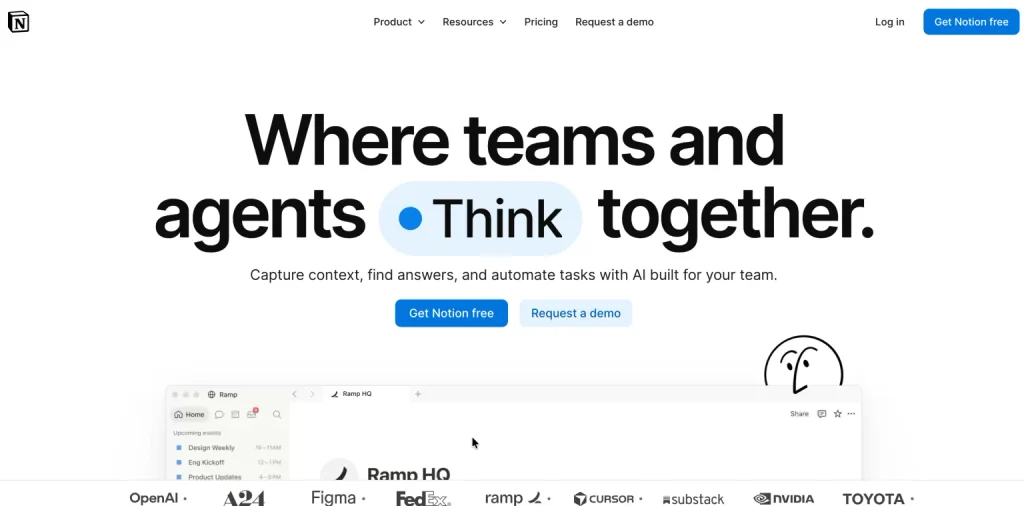
Notion is an all-in-one workspace where documents, wikis, databases, and tasks are brought together. Teams use it to structure knowledge bases, meeting notes, project management tools, and internal documentation wikis that are easy to find and update.
The software is highly customizable, which requires everyone who updates a document to understand the structure, so teams have to standardize the format to avoid cluttering the page with irrelevant information. Notion offers AI-driven writing and summarizing tools, and there is a free plan for individual use and small teams.
Key Features:
- Docs And Wikis
- Linked Databases
- Task And Project Views
- Templates
- AI Writing And Summaries
Pros:
- Very Flexible
- Great For Knowledge Sharing
- Free Plan Available
Cons:
- Needs Structure To Stay Clean
- Limited Real-Time Chat
- Learning Curve For Databases
Pricing:
- Free: $0/member/month
- Plus: $12/member/month
- Business: $24/member/month
- Enterprise: Custom pricing
6. Asana
- Website: https://asana.com/
- Best for: Teams that need cross-functional task tracking with clear ownership and deadlines
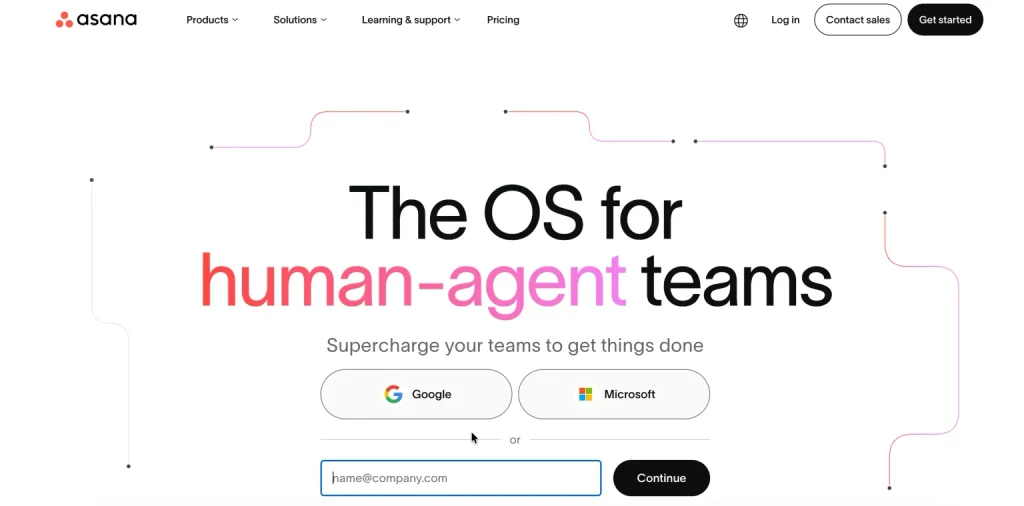
Asana is a work management system in which teams design tasks, assign them to responsible persons, set deadlines, and track progress in a list, board, or timeline view. The tool helps managers keep track of the work and team members that are involved.
Goals, processes, and automation connect day-to-day activities to an organization’s objectives. It is simple to implement but emphasizes task management, so teams must choose a separate solution to facilitate communication and document exchange.
Key Features:
- Tasks And Subtasks
- List, Board, And Timeline Views
- Goals And Workflows
- Automation Rules
- Wide Integrations
Pros:
- Clean, Easy Interface
- Clear Accountability
- Strong Collaboration On Tasks
Cons:
- Not A Chat Tool
- Advanced Features On Higher Plans
- Costs Rise At Higher Tiers
Pricing:
- Personal: $0 (Free forever)
- Starter: $13.49/user/month
- Advanced: $30.49/user/month
- Enterprise: Custom pricing
7. monday.com
- Website: https://monday.com/
- Best for: Teams that need visual workflows, project tracking, and customizable dashboards
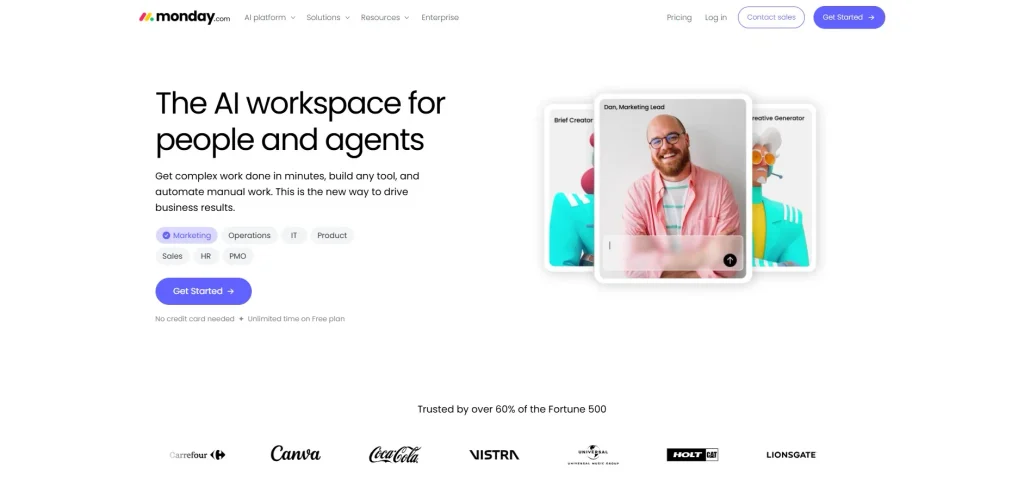
monday.com is a visual work platform that uses colorful boards to help teams manage tasks, projects, and processes. Teams can personalize columns, automate repetitive stages, and create dashboards to provide managers with an overview of the state of affairs.
It is user-friendly for marketing, sales, operations, and product managers, and most people find it easy to learn. As the team grows, the number of seats purchased increases, and the tool is more suited to managing work than real-time communication.
Key Features:
- Customizable Boards
- Dashboards And Reports
- Automation Recipes
- Timeline And Calendar Views
- Wide App Integrations
Pros:
- Very Visual And Easy
- Flexible For Many Teams
- Strong Automations
Cons:
- Costs Rise With Seats
- Not Built For Chat
- Advanced Features On Higher Plans
Pricing:
- Free: $0 forever
- Basic: $9/seat/month
- Standard: $12/seat/month
- Pro: $19/seat/month
- Enterprise: Custom pricing
8. ClickUp
- Website: https://clickup.com/
- Best for: Teams that want tasks, docs, chat, goals, and dashboards in one flexible workspace
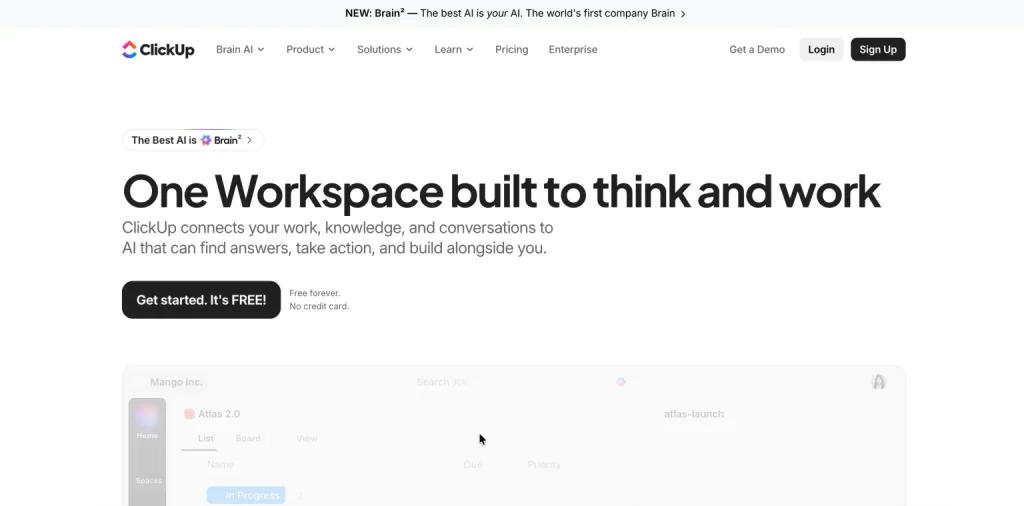
ClickUp is an innovative workspace that includes tasks, documents, whiteboards, goals, time tracking, and dashboards. Teams that want to limit the number of software they use tend to choose it because of the variety of available features.
Its affordability and a generous free plan make it an attractive option for start-ups and growing companies. The steep learning curve may turn some users away, but a team should invest time in customization to maximize the productivity of the workspace.
Key Features:
- Tasks And Docs
- Whiteboards And Goals
- Time Tracking
- Custom Dashboards
- Automations
Pros:
- Very Affordable
- Generous Free Plan
- Highly Flexible
Cons:
- Can Feel Overwhelming
- Setup Takes Time
- Some Performance Complaints
Pricing:
- Free Forever: Free
- Unlimited: $10/user/month
- Business: $19/user/month
- Enterprise: Custom demo
9. Trello
- Website: https://trello.com/
- Best for: Small teams that need simple, visual Kanban boards for straightforward projects
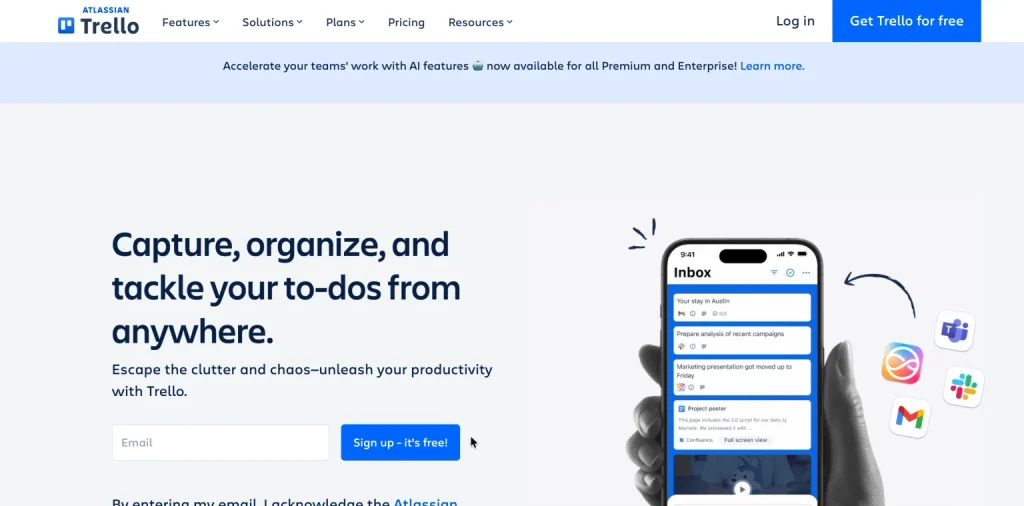
Trello uses boards, lists, and cards to help teams visualize their work processes. Users move cards through columns to represent progress and set due dates, checklists, attachments, and comments for each card.
Its simplicity makes it great for smaller teams, individual use, and easy setup, while Power-Ups provide calendars, automation, and integrations, but it is not as suited to complex projects that require detailed timelines and reporting.
Key Features:
- Kanban Boards
- Cards With Checklists
- Power-Ups
- Butler Automation
- Easy Sharing
Pros:
- Very Easy To Learn
- Free Plan Available
- Highly Visual
Cons:
- Limited For Complex Projects
- Basic Reporting
- Power-Ups Needed For More
Pricing:
- Free: $0
- Standard: $5 /user/month
- Premium: $10 /user/month
- Enterprise: $17.50 /user/month
10. Basecamp
- Website: https://basecamp.com/
- Best for: Small teams and agencies that want one simple place for projects and communication
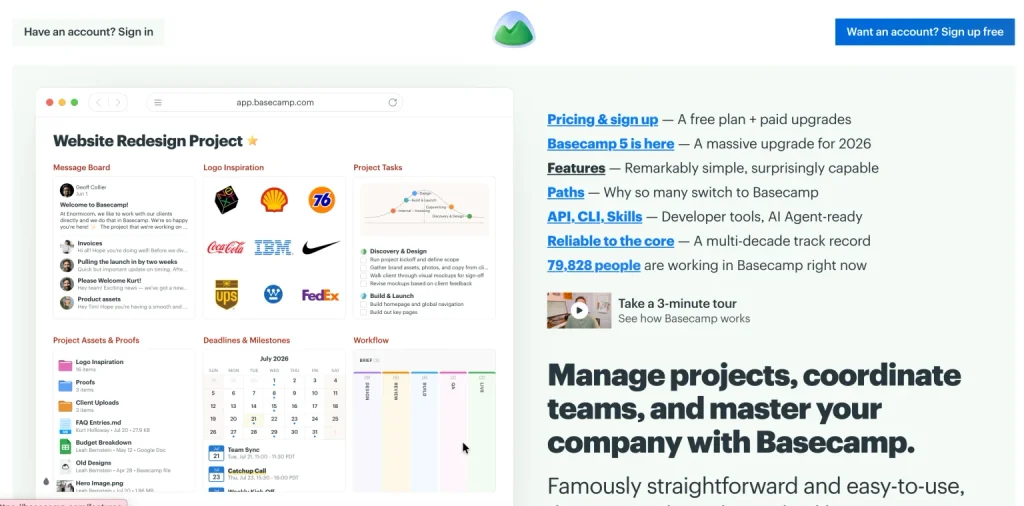
Basecamp organizes each project into message boards, to-do lists, schedules, docs, and file storage. It deliberately avoids too many options, which keeps it simple for small teams and clients.
Its pricing model is unusual, offering either a per-user price or a flat fee for unlimited users on higher plans, which can be economical for larger groups. It has fewer advanced features, such as detailed reporting and deep integrations, than many competitors.
Key Features:
- Message Boards
- To-Do Lists
- Schedules And Docs
- File Storage
- Client Access
Pros:
- Simple And Clear
- Flat Pricing Option
- Good For Client Work
Cons:
- Limited Advanced Features
- Basic Reporting
- Fewer Integrations
Pricing:
- Free: $0/month
- Studio: $59/month
- Pro: $99/month
- Unlimited: $299/month
11. Miro
- Website: https://miro.com/
- Best for: Remote teams that need visual collaboration, brainstorming, workshops, and diagramming
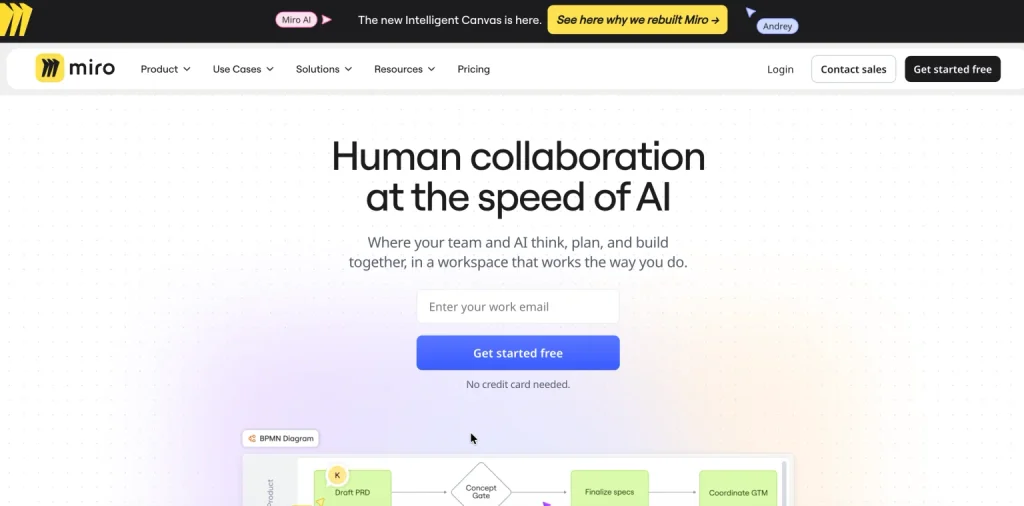
Miro is an online whiteboard with an infinite canvas, where teams can brainstorm, map, diagram, and workshop ideas together. Sticky notes, templates, and real-time cursors help recreate the experience of working on a physical whiteboard in person.
It is popular with product, design, and agile teams, and its AI features can help summarize and cluster ideas. It is not a replacement for chat or task tools, and the free plan limits the number of editable boards.
Key Features:
- Infinite Whiteboard Canvas
- Workshop Templates
- Real-Time Collaboration
- Diagramming Tools
- Wide Integrations
Pros:
- Great For Brainstorming
- Easy For Remote Workshops
- Free Plan Available
Cons:
- Not A Chat Or Task Tool
- Free Plan Board Limits
- Costs Rise With Teams
Pricing:
- Free: $0/month
- Starter: $10/month per member
- Business: $25/month per member
- Enterprise: Custom pricing
12. Mattermost
- Website: https://mattermost.com/
- Best for: Organizations that need secure, self-hosted team messaging and greater control over their data
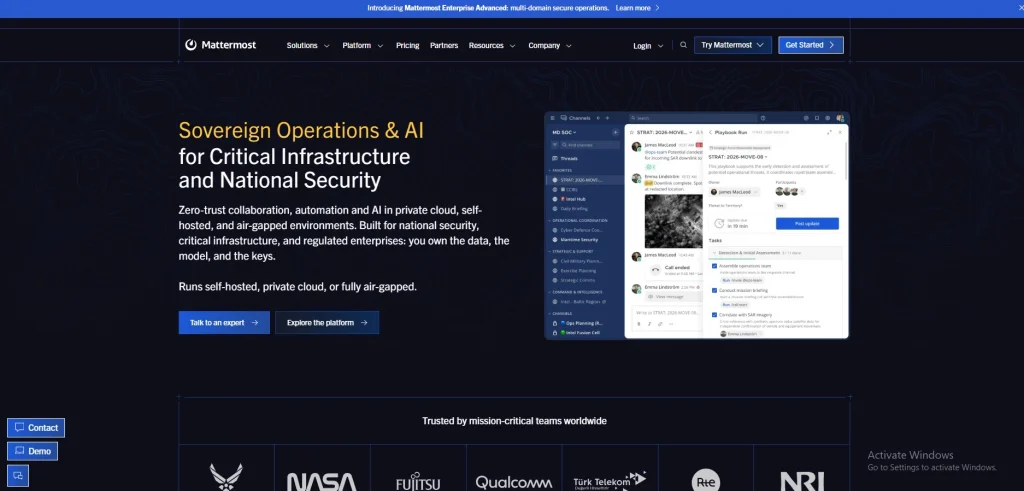
Mattermost is an open-source messaging and collaboration platform that can be self-hosted. Its ability to run on private servers makes it particularly attractive to security-conscious organizations and governments.
It offers communication channels, messaging, calls, and connections to development platforms. It requires a higher degree of technical expertise to set up and manage than a cloud-based platform and has a less feature-complete ecosystem than Slack.
Key Features:
- Self-Hosted Or Cloud Options
- Channels And Direct Messages
- Voice And Video Calls
- Developer Tool Integrations
- Security And Compliance Controls
Pros:
- Full Data Control
- Open-Source Core
- Strong Security
Cons:
- More Setup Effort
- Smaller Ecosystem
- Needs IT Resources
Pricing:
- Custom pricing
13. Loom
- Website: https://www.loom.com/
- Best for: Distributed teams that use asynchronous video updates, walkthroughs, and feedback
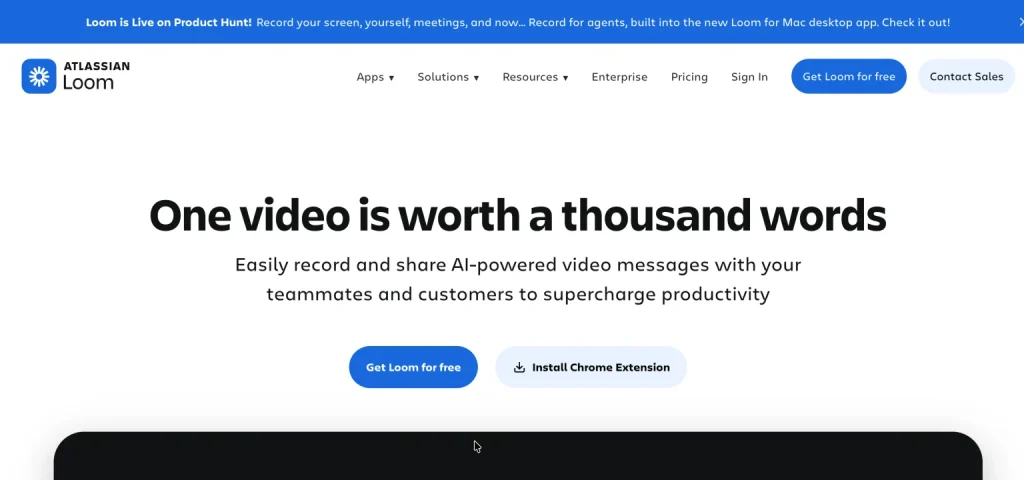
Loom is a collaborative workspace that allows you to record an individual’s screen, camera, and voice while sharing the link instantly. It is suitable for explaining ideas, giving feedback, and walking through work processes. It is a good option because of the AI summaries and transcripts, which make it easier to scan the video content.
The tool is better used as a complementary solution to a chat and project management tool rather than a stand-alone collaboration suite, while the use of video can lead to long recordings that team members are unlikely to watch.
Key Features:
- Screen And Camera Recording
- Instant Shareable Links
- AI Summaries And Transcripts
- Comments And Reactions
- Workspace Library
Pros:
- Saves Meeting Time
- Very Easy To Use
- Helpful AI Summaries
Cons:
- Not A Full Suite
- Videos Can Be Skipped
- Paid Plans For Larger Teams
Pricing:
- Starter: $0
- Business: $18 per user/month
- Business + AI: $24 per user/month
- Enterprise: (custom pricing)
14. Dropbox
- Website: https://www.dropbox.com/business
- Best for: File-focused teams that need secure cloud storage, file sharing, and document workflows
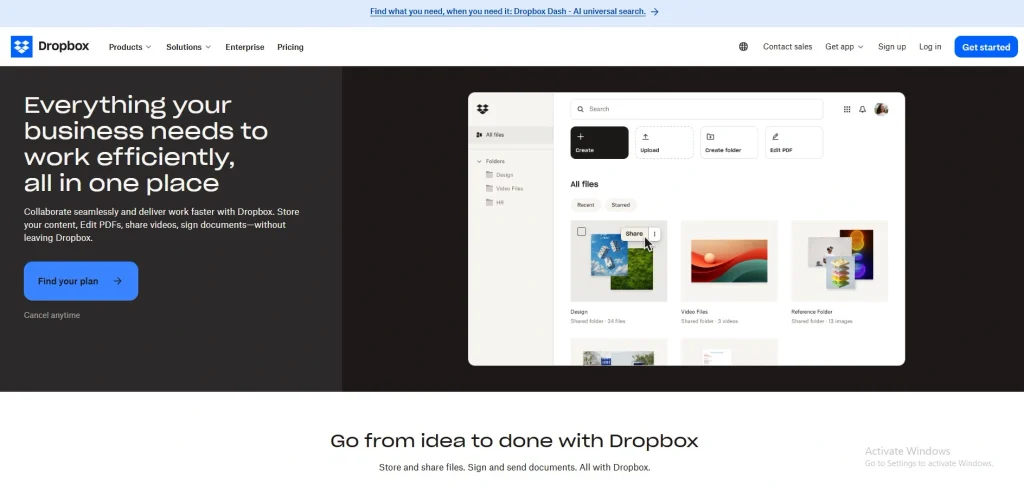
Dropbox is a cloud storage and file-sharing platform that allows teams to store, sync, and share files from any device. Shared folders, comments, and version history help teams collaborate on the correct documents.
The application also provides tools such as document signing and an artificial intelligence-powered search assistant. It focuses on files rather than chat and tasks, so it is usually one element of a collaboration stack, and expenses may increase as storage needs expand.
Key Features:
- Cloud File Storage And Sync
- Shared Folders
- Version History
- Document Comments And Signing
- AI Search Features
Pros:
- Reliable File Syncing
- Easy Sharing
- Works Across Devices
Cons:
- File-Focused Only
- Higher Price Than Some Rivals
- No Built-In Project Tools
Pricing:
- Basic Extra: $0.99/month
- Plus: $11.99/month
- Standard: $18/user/month
- Advanced: $30/user/month
15. Lark
- Website: https://www.larksuite.com/
- Best for: Small and growing teams that want chat, documents, calendars, and video meetings in one suite
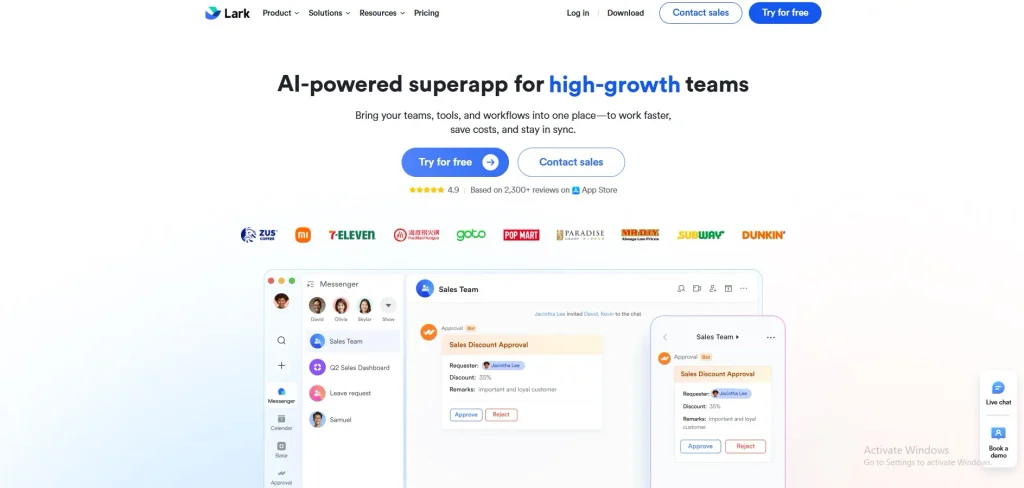
Lark is a collaboration suite bringing together messaging, video conferencing, documents, calendar, email, and approvals in a single platform. It is a preferred choice among users who want to reduce the number of tools they use for work.
Lark’s free plan is more generous than those of several major competitors. This is why many startups and small businesses opt for it. Before finalizing your decision, evaluate your data storage and security needs and see if the software integrates with the rest of your workflow.
Key Features:
- Messaging And Video Meetings
- Docs And Spreadsheets
- Shared Calendar
- Approval Workflows
- Email And Drive
Pros:
- Generous Free Tier
- All-In-One Workspace
- Good Value For Small Teams
Cons:
- Smaller Ecosystem
- Review Data And Compliance Needs
- Less Known Than Big Suites
Pricing:
- Starter: $0/user/month
- Basic: $7.2/user/month
- Pro: $14.40/user/month
- Enterprise: Custom pricing
Suggested Read:
How To Choose The Right Team Collaboration Tool?
The best tool depends on your team size, how you work, and the apps you already use. A small remote startup and a large regulated company have very different needs.
- Work Style: Chat-first teams may prefer Slack, document-first teams Google Workspace, and Microsoft-based teams Teams, while visual teams may add Miro or monday.com.
- Budget: Look beyond the starting price. Check free plan limits, seat costs, storage, and add-ons such as AI features.
- Team Size & Growth: Small teams can start with simple tools, while larger organizations need admin controls, permissions, and scalable pricing.
- Security & Compliance: Check single sign-on, data location, audit logs, and self-hosting options if you handle sensitive information.
- Integrations & Adoption: Make sure the tool connects with your calendar, storage, and B2B CRM tools, and pick something your team will actually use daily.
Common Mistakes To Avoid When Choosing Collaboration Tools
Many teams add tool after tool until nobody knows where anything lives. Avoid these common mistakes.
- Using Too Many Overlapping Tools: Several chat or task apps split information. Choose one main tool for each job.
- Ignoring Free Plan Limits: History limits, meeting time caps, and storage limits can force an upgrade sooner than you expect.
- Skipping Team Input: The people using the tool every day should help choose it, or adoption will suffer.
- Forgetting Security And Access: Review permissions, guest access, and data policies before you move important files.
- No Clear Usage Rules: Without agreed channels, naming, and response expectations, even the best tool becomes noisy.
- Neglecting Onboarding: Provide short training and templates so everyone starts with the same habits.
Conclusion
Team collaboration tools help teams communicate faster, share knowledge, and stay aligned wherever they work. Slack, Microsoft Teams, Google Workspace, Zoom Workplace, and Lark cover core communication, while Notion, Asana, monday.com, ClickUp, Trello, and Basecamp help organize knowledge and work. Miro, Loom, Dropbox, and Mattermost fill specific needs such as brainstorming, async video, file sharing, and secure self-hosting.
By comparing work style, budget, team size, security, and integrations, you can build a simple stack that fits your team today and grows with you. Try a few free plans, run a short pilot with real projects, and keep your toolset small so people know exactly where to go for each type of work.
FAQs
Q1: What Is The Best Team Collaboration Tool In 2026?
There is no single best tool. Slack is popular for chat, Microsoft Teams for Microsoft 365 organizations, Google Workspace for document collaboration, and Notion or ClickUp for flexible workspaces. The right choice depends on how your team works.
Q2: What Is The Best Free Team Collaboration Tool?
Slack, Microsoft Teams, Trello, ClickUp, Notion, Miro, and Lark all offer useful free plans. Free tiers usually limit message history, meeting length, boards, or storage, so check those limits against your needs.
Q3: What Is The Difference Between Collaboration Tools And Project Management Tools?
Collaboration tools focus on communication, file sharing, and meetings, while project management tools focus on tasks, timelines, and progress. Many platforms such as ClickUp, Asana, and monday.com combine both to some extent.
Q4: Which Tools Are Best For Remote And Hybrid Teams?
Slack or Microsoft Teams for messaging, Zoom Workplace for video, Notion for knowledge, Miro for visual work, and Loom for asynchronous updates form a strong remote stack. Add a task tool such as Asana or ClickUp to track work.
Q5: Can I Use One Tool For All Team Collaboration Needs?
All-in-one suites such as Microsoft 365, Google Workspace, Lark, and ClickUp cover many needs, but most teams still add a specialist tool, such as Miro for whiteboarding or Loom for async video. Aim for a small stack rather than many overlapping apps.