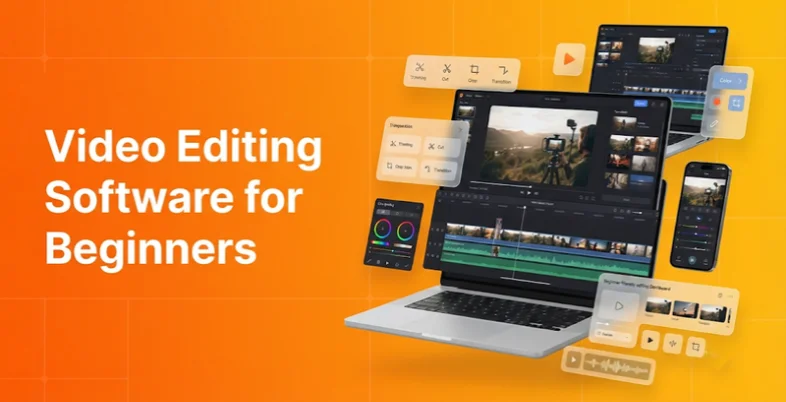
Ever watched a perfectly edited YouTube video or Instagram Reel and wondered how creators make their content look so professional? The secret isn’t always expensive equipment or years of editing experience. With the right video editing platform, even beginners can turn ordinary footage into engaging, high-quality videos.
However, choosing the right tool can be challenging, especially with so many free and paid options available. Some editors focus on simple drag-and-drop controls, while others offer AI-powered features, ready-made templates, advanced effects, and professional editing capabilities. The best choice depends on your experience, budget, device, and content creation goals.
Whether you want to start a YouTube channel, create Instagram Reels, edit travel videos, or produce business content, this guide covers the best video editing software for beginners in 2027. Explore their features, pricing, pros, and cons to find the right editor for your first project.
Essential Features to Look for in Video Editing Software for Beginners
Choosing video editing software isn’t just about finding an application with an attractive interface. The right tool should make everyday editing tasks easier while giving you enough flexibility to experiment and improve your skills. Before investing in a free or paid editor, consider the following essential features.
- Easy-to-Use Interface: Choose software with a clean layout, simple navigation, and accessible editing tools. A drag-and-drop interface makes arranging clips and adding effects easier.
- Basic Editing Tools: Look for essential tools such as trimming, cutting, splitting, cropping, and merging clips. These features help you create smooth, well-organized videos.
- Ready-Made Templates and Effects: Built-in templates, transitions, filters, and animations help beginners create attractive videos quickly. They are especially useful for YouTube videos and social media content.
- AI-Powered Editing Tools: Features such as automatic subtitles, background removal, noise reduction, and AI video enhancement simplify editing tasks. They also help save time and effort.
List of Best Video Editing Software for Beginners
1. Adobe Premiere Elements
- Website: https://www.adobe.com/in/
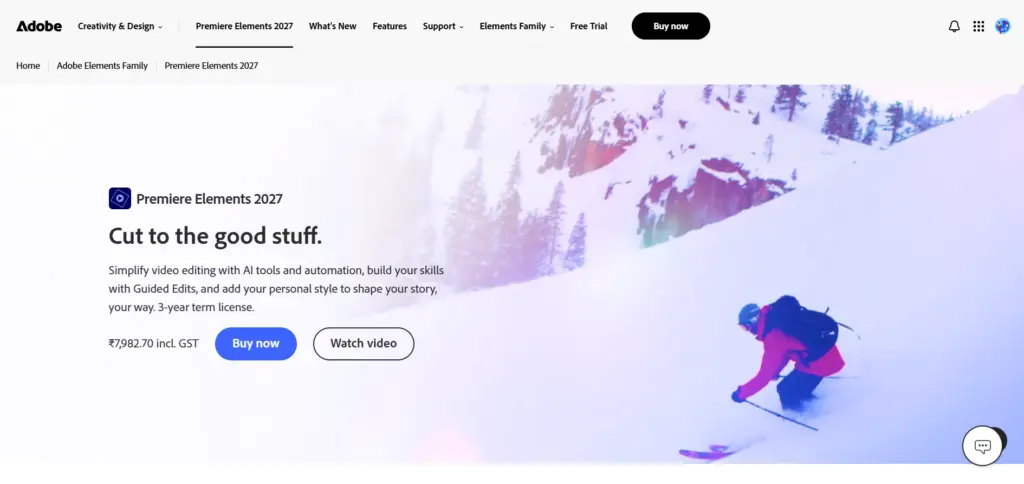
Adobe Premiere Elements is a beginner-friendly video editing software designed for users who want to create polished videos without learning complicated editing techniques. Its intuitive interface offers three editing modes: Quick, Guided, and Expert, allowing users to gradually develop their skills.
The Guided mode is particularly useful for beginners because it provides step-by-step instructions for adding transitions, creating time-lapse videos, applying effects, and improving footage. AI-powered features such as Smart Trim and automatic subject reframing help simplify repetitive editing tasks. Unlike Adobe Premiere Pro, Premiere Elements does not require a traditional monthly subscription. It is a suitable choice for families, hobbyists, and new content creators who want an accessible editing experience.
Key Features:
- Three editing modes: Quick, Guided, and Expert.
- AI-powered Smart Trim for automatically selecting the best footage.
- Automatic subject tracking and video reframing.
- Built-in transitions, filters, titles, and creative effects.
- Tools for creating slideshows, social media videos, and home movies.
Pros:
- Beginner-friendly interface with guided tutorials.
- One-time purchase instead of a monthly subscription.
- AI features reduce manual editing work.
- Suitable for creating polished personal and social media videos.
Cons:
- Lacks advanced professional color grading tools.
- No dedicated multi-camera editing functionality.
- Fewer advanced features than Adobe Premiere Pro.
- Major upgrades may require an additional purchase.
Pricing:
- Individual Licence: ₹7,982.70 (including GST) – 3-year term licence.
- Upgrade Price: ₹6,386.16 (including GST).
- Photoshop Elements & Premiere Elements 2027 Bundle: ₹11,977.00 (including GST) – 3-year term licence.
- Bundle Upgrade Price: ₹9,579.24 (including GST).
- Students & Teachers Bundle Price: ₹6,386.16 (including GST).
2. Wondershare Filmora
- Website: https://filmora.wondershare.com/
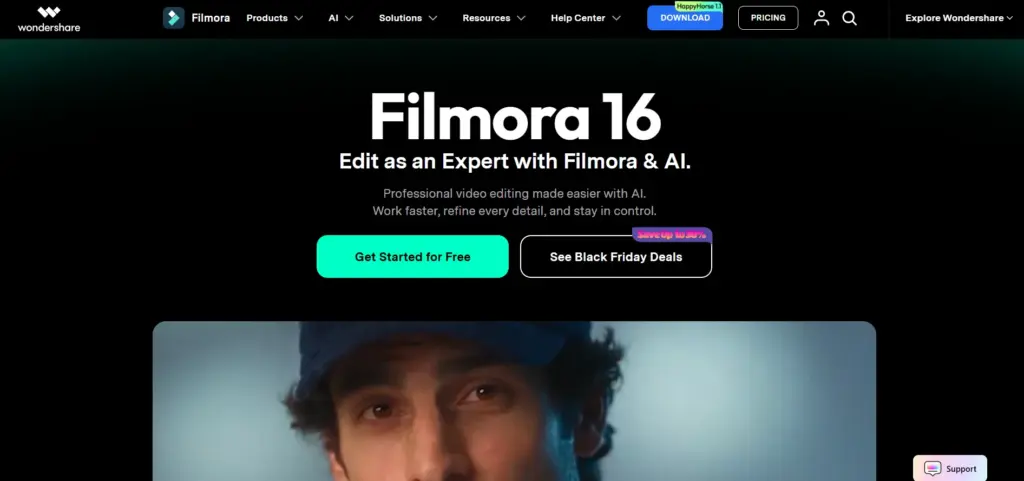
Wondershare Filmora is an easy-to-use video editing software that helps beginners create engaging videos without extensive technical knowledge. Its drag-and-drop interface makes it simple to arrange clips, add background music, insert titles, and apply transitions. The platform offers a large collection of templates, visual effects, filters, and stock media that users can incorporate into their projects.
Filmora also includes AI-powered tools for automatic subtitles, background removal, audio enhancement, and other editing tasks. Its screen recording functionality makes it particularly useful for YouTube creators, educators, and gaming enthusiasts. With subscription and perpetual licensing options, Filmora provides flexibility for users with different budgets and editing requirements.
Key Features:
- Drag-and-drop video editing with an intuitive timeline.
- AI-powered background removal and automatic caption generation.
- Extensive library of transitions, effects, filters, and templates.
- Built-in screen recording for tutorials and gaming videos.
- Audio editing, motion tracking, and keyframing tools.
Pros:
- Easy to learn, even without previous editing experience.
- Extensive collection of creative templates and effects.
- Useful AI tools simplify repetitive editing tasks.
- Flexible subscription and perpetual purchase options.
Cons:
- Some premium effects require additional payments.
- Free exports may include a watermark.
- Advanced features can take time to understand.
- May consume considerable system resources when editing large projects.
Pricing:
- Basic: US$9.99/month
- Advanced: US$29.99/year
- Perpetual: US$49.99 (one-time payment)
- Creative Assets: Free for 7 days, then US$9.99/month
3. CyberLink PowerDirector
- Website: https://www.cyberlink.com/
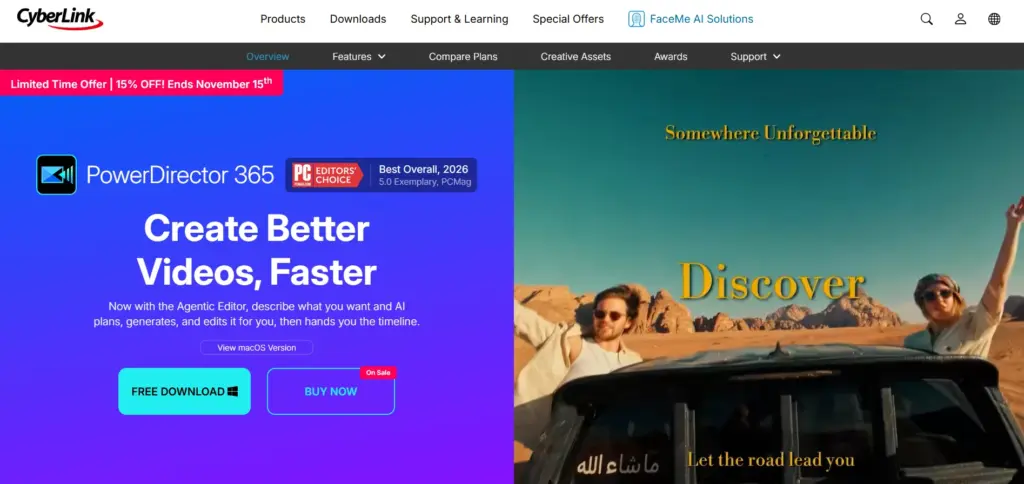
CyberLink PowerDirector is a feature-rich video editing application that combines an approachable interface with advanced editing capabilities. It is suitable for beginners who want to start with simple projects and gradually explore more sophisticated editing techniques. Users can arrange video clips, add transitions, create animated titles, and enhance audio through its timeline-based editing workspace.
The software also includes AI-powered features, motion tracking, screen recording, and tools for editing high-resolution footage. Its fast rendering capabilities help reduce export times, particularly when working with supported hardware. PowerDirector offers both subscription-based and perpetual licensing options, making it a flexible choice for hobbyists, YouTubers, and aspiring video editors.
Key Features:
- Multi-track timeline for arranging video, audio, and visual elements.
- AI-powered video enhancement and editing tools.
- Motion tracking and animated title creation.
- Screen recording and 4K video editing support.
- Built-in effects, transitions, templates, and stock media options.
Pros:
- Combines beginner-friendly controls with advanced features.
- Fast rendering and exporting performance.
- Offers flexible subscription and one-time purchase plans.
- Suitable for different types of video projects.
Cons:
- The interface can feel crowded for first-time users.
- Some effects and add-ons require separate purchases.
- Certain advanced features have a learning curve.
- Subscription features and pricing can vary by platform.
Pricing:
- PowerDirector 365: €24.99/month
- Director Suite: €29.99/month
- Promeo: €12.99/month
4. Movavi Video Editor
- Website: https://www.movavi.com/in/video-editor-plus/
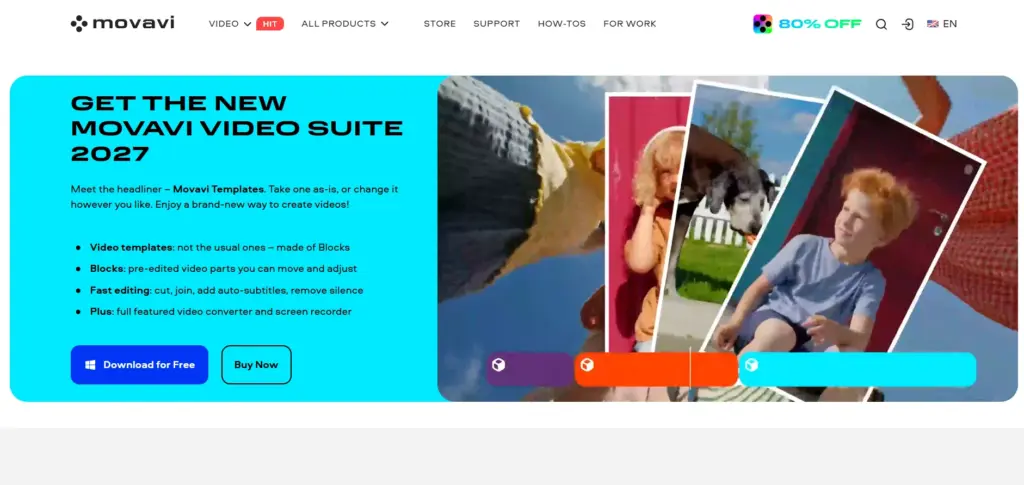
Movavi Video Editor is designed for beginners who want to create professional-looking videos without spending hours learning complicated editing software. As one of the easy-to-use video editing software options, its straightforward interface allows users to import footage, arrange clips, add transitions, insert text, and apply visual effects through simple drag-and-drop controls.
The software also includes AI-powered tools that automate common editing tasks, such as generating subtitles, removing background noise, and improving video quality. Its ready-made templates and creative assets make it easier to produce social media content, personal videos, and short promotional clips. Available for Windows and macOS, Movavi is particularly useful for casual creators who prioritize convenience, speed, and a smooth editing experience over advanced production controls.
Key Features:
- Simple drag-and-drop editing timeline.
- AI-powered automatic subtitle generation.
- Background noise removal and video enhancement tools.
- Built-in transitions, filters, titles, and effects.
- Tools for converting horizontal videos into vertical formats.
Pros:
- Easy-to-navigate interface for beginners.
- AI tools help speed up everyday editing tasks.
- Offers ready-made templates and creative effects.
- Works well for basic social media and personal projects.
Cons:
- Free trial exports may contain watermarks.
- Advanced color grading options are limited.
- Not ideal for complex multi-camera projects.
- Some additional content and features require paid plans.
Pricing:
- Video Editor: ₹2,699 (Lifetime)
- Video Editor Plus: ₹3,199 (Lifetime, discounted from ₹7,119)
- Video Suite: ₹3,590 (Lifetime, discounted from ₹7,397)
5. DaVinci Resolve
- Website: https://www.blackmagicdesign.com/in/
DaVinci Resolve by Blackmagic Design is a powerful video editing application that offers professional-grade tools alongside a comprehensive free version. Although its extensive capabilities may initially seem challenging, beginners can start with the simplified Cut page to organize footage, trim clips, add transitions, and assemble videos.
As their experience improves, they can explore advanced editing, color correction, visual effects, and audio production within the same application. Its integrated workflow eliminates the need to switch between multiple programs for different production tasks. The free version supports a wide range of editing requirements, including UHD 4K exports at up to 60fps. It is an excellent option for learners who want software that can support their long-term creative development.
Key Features:
- Cut and Edit pages for professional timeline editing.
- Advanced color correction and color grading tools.
- Fusion workspace for visual effects and motion graphics.
- Fairlight tools for audio recording, mixing, and editing.
- Free version with UHD 4K export support.
Pros:
- Powerful free version with extensive editing capabilities.
- Professional tools for video, audio, and visual effects.
- Suitable for beginners and experienced editors.
- Excellent long-term learning and career development potential.
Cons:
- Steeper learning curve than beginner-focused editors.
- Requires a relatively powerful computer.
- Interface may feel overwhelming initially.
- Some advanced features are exclusive to the Studio version.
Pricing:
- DaVinci Resolve 21: Free.
- DaVinci Resolve Studio 21: ₹25,980 (discounted from ₹31,980).
- DaVinci Resolve Speed Editor: ₹29,980 (discounted from ₹38,980).
- DaVinci Resolve Replay Editor: ₹38,980 (discounted from ₹48,980).
- DaVinci Resolve Editor Keyboard: ₹46,980 (discounted from ₹58,980).
- DaVinci Resolve Micro Color Panel: ₹41,980 (discounted from ₹51,980).
- DaVinci Resolve Mini Panel: ₹1,72,800 (discounted from ₹2,15,800).
- DaVinci Resolve Advanced Panel: ₹25,28,000 (discounted from ₹31,58,000).
Suggested Read:
6. Apple iMovie
- Website: https://www.apple.com/in/imovie/
Apple iMovie is a free video editing application designed for users who want a simple way to create attractive videos across Apple devices. Available on Mac, iPhone, and iPad, it offers an intuitive editing experience with easy-to-use tools for trimming clips, arranging footage, adding music, and applying transitions.
Beginners can use its Storyboards to follow guided video creation workflows or Magic Movie to automatically turn selected clips and photos into an edited video. Its seamless integration with the Apple ecosystem also makes it convenient to start editing on an iPhone and continue working on an iPad or Mac. Although it does not offer the advanced controls of professional editing software, iMovie is an excellent starting point for students, families, and new content creators.
Key Features:
- Simple drag-and-drop video editing.
- Magic Movie for automatically creating edited videos.
- Storyboards with ready-made video creation templates.
- Built-in transitions, titles, music, and sound effects.
- Cross-device project sharing across supported Apple devices.
Pros:
- Completely free to use.
- Beginner-friendly and uncluttered interface.
- Smooth integration with Apple devices.
- Supports 4K video editing on compatible devices.
Cons:
- Available only within the Apple ecosystem.
- Limited advanced color correction options.
- Fewer creative effects than professional editors.
- Not suitable for complex multi-camera editing projects.
Pricing:
Free
7. Microsoft Clipchamp
- Website: https://clipchamp.com/en/pricing/
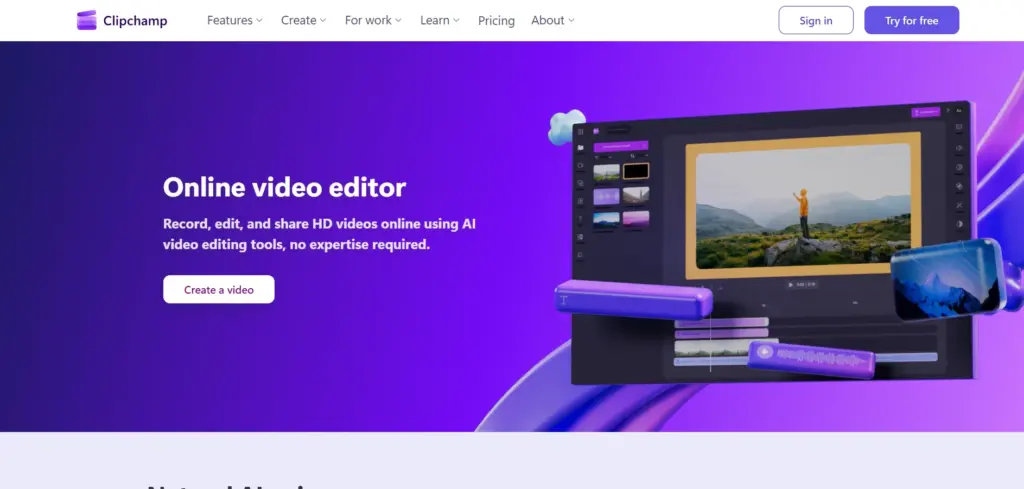
Microsoft Clipchamp is a beginner-friendly video editing platform that makes creating videos accessible through a web browser or its Windows application. Its simple interface allows users to combine video clips, images, audio, and text without requiring advanced editing knowledge. The platform offers ready-made templates for social media posts, presentations, promotional videos, and tutorials.
Beginners can also use its AI-powered features, including automatic captions, text-to-speech, and background removal, to simplify their workflow. Its integration with Windows 11 makes it particularly convenient for PC users who want to start editing without installing complicated professional software. With a free plan and optional premium features, Clipchamp is a practical choice for everyday video creation.
Key Features:
- Browser-based and Windows video editing.
- Drag-and-drop timeline for arranging clips.
- AI-powered automatic captions and text-to-speech.
- Built-in templates, stock media, and audio assets.
- Screen and webcam recording functionality.
Pros:
- Easy to use without previous editing experience.
- Free plan supports exports up to 1080p.
- Convenient Windows 11 integration.
- Useful templates for presentations and social media content.
Cons:
- Advanced timeline controls are limited.
- Requires a stable internet connection for some features.
- Premium stock assets require a paid plan.
- Not ideal for professional video production.
Pricing:
Free
8. CapCut
- Website: https://www.capcut.com/
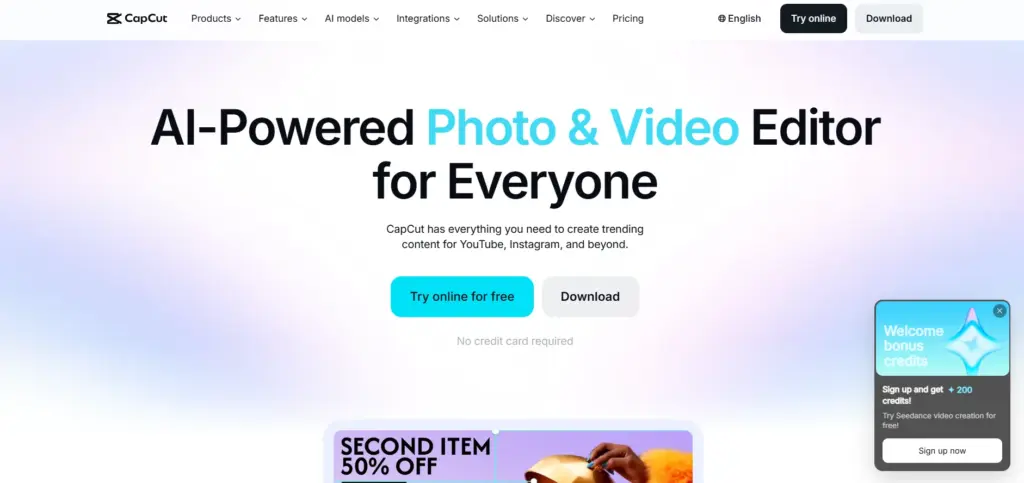
CapCut is a popular video editing application designed for creators who want to produce engaging short-form videos for platforms such as TikTok, Instagram Reels, and YouTube Shorts. Its beginner-friendly interface makes it easy to trim footage, combine clips, add background music, insert animated text, and apply trending transitions.
Users can also explore a large collection of templates and visual effects to create attractive videos without starting from scratch. AI-powered features such as automatic captions, background removal, and text-to-speech further simplify the editing process. Available across mobile, desktop, and web platforms, CapCut offers flexibility for creators who prefer editing on different devices. Its free version provides a useful starting point for beginners.
Key Features:
- Ready-made templates for short-form social media videos.
- AI-powered automatic captions and text-to-speech.
- Background removal and video enhancement tools.
- Built-in music, filters, transitions, and visual effects.
- Mobile, desktop, and web editing support.
Pros:
- Extremely easy to learn and use.
- Excellent for Instagram Reels, TikTok, and YouTube Shorts.
- Large collection of templates and trending effects.
- Free version includes many useful editing tools.
Cons:
- Some popular features require a Pro subscription.
- Premium pricing and availability can vary by region and platform.
- Less suitable for complex long-form editing projects.
- Template-dependent editing can limit creative customization.
Pricing:
$19.99 per month or $179.99 per year
9. Corel VideoStudio
- Website: https://www.videostudiopro.com/
Corel VideoStudio is a Windows-based video editing software that provides beginners with an accessible environment for creating personal videos, YouTube content, and creative projects. Its interface combines storyboard and timeline editing, allowing users to choose between simple clip arrangement and more detailed editing controls.
The software includes a variety of transitions, animated titles, filters, and visual effects that help improve the overall appearance of videos. Beginners can also experiment with motion tracking, split-screen layouts, and multi-camera editing as their skills develop. Its one-time licensing model makes it appealing to users who prefer avoiding recurring subscription costs. Overall, VideoStudio offers a practical combination of creative flexibility and beginner-friendly functionality.
Key Features:
- Storyboard and multi-track timeline editing.
- Built-in transitions, filters, and animated titles.
- Motion tracking and split-screen video tools.
- Multi-camera and 360-degree video editing support.
- Creative templates, stickers, and visual effects.
Pros:
- Easy-to-understand editing workspace.
- One-time purchase option.
- Good selection of built-in creative effects.
- Offers room to explore more advanced editing techniques.
Cons:
- Available only for Windows.
- Interface design can feel dated.
- Major updates may require additional purchases.
- Some advanced features may be difficult for beginners.
Pricing:
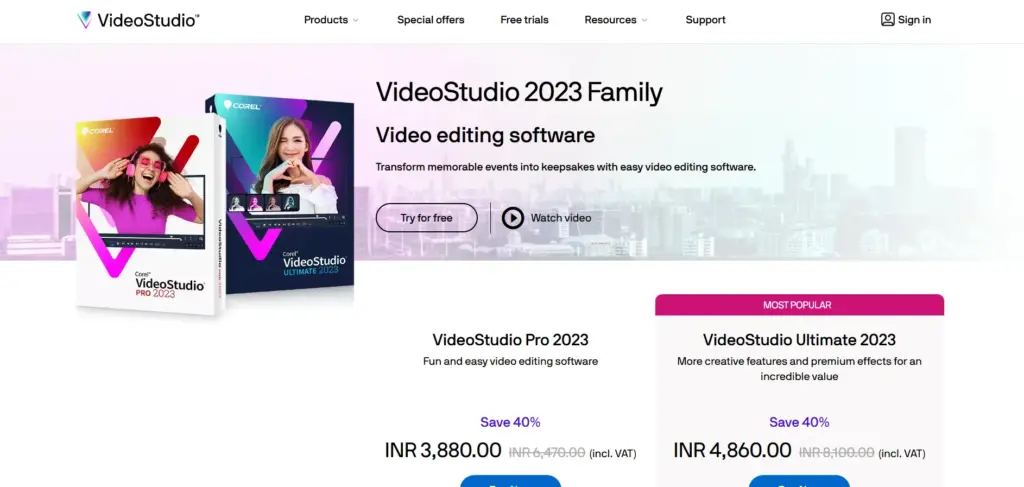
- VideoStudio Pro 2023: ₹3,880 (discounted from ₹6,470).
- VideoStudio Ultimate 2023: ₹4,860 (discounted from ₹8,100).
10. Canva Video Editor
- Website: https://www.canva.com/
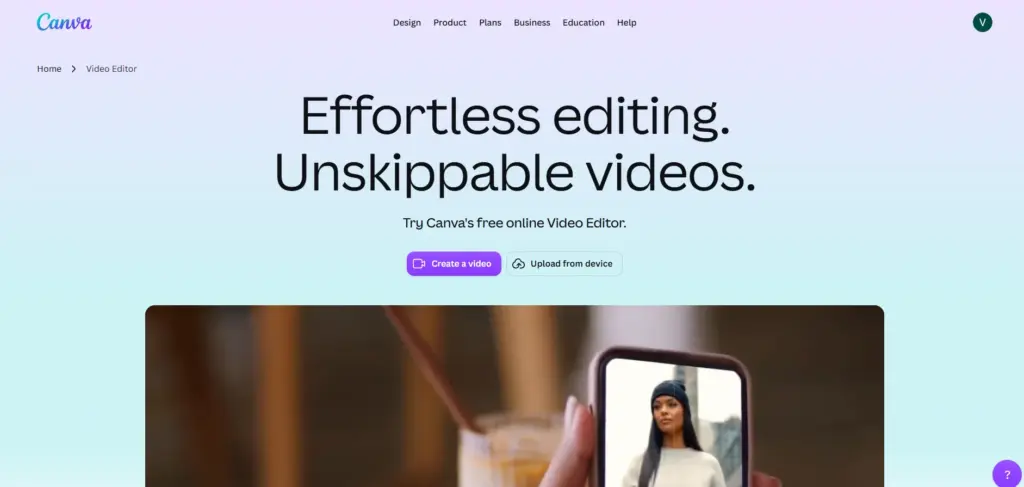
Canva Video Editor is a template-driven editing platform designed for beginners who want to create attractive videos without learning traditional editing techniques. Its browser-based interface allows users to combine video clips, images, animations, text, and audio through simple drag-and-drop controls. The platform provides thousands of customizable templates for social media content, advertisements, presentations, and promotional videos.
Beginners can also access stock footage, music, and design elements to improve their projects. Canva’s AI-powered Magic Studio tools offer additional creative assistance, while its Brand Kit helps businesses maintain consistent visual branding. Although it does not provide the detailed timeline controls of professional editing applications, it is an excellent option for marketers, students, and social media creators.
Key Features:
- Drag-and-drop video editing interface.
- Thousands of customizable video templates.
- Built-in stock footage, music, animations, and design elements.
- AI-powered Magic Studio editing tools.
- Brand Kit for maintaining consistent branding across videos.
Pros:
- Very easy to use for first-time editors.
- Extensive collection of ready-made templates.
- Combines graphic design and video editing in one platform.
- Convenient for creating branded social media content.
Cons:
- Limited advanced timeline editing controls.
- Some premium templates and assets require Canva Pro.
- Not suitable for complex professional video projects.
- Browser-based editing can depend on internet performance.
Pricing:
- Free: ₹0/year.
- Pro Lite: ₹1,590/year.
- Pro: ₹4,000/year.
- Business: ₹6,800/year per person.
How to Start Video Editing as a Beginner
Getting started with video editing doesn’t have to be complicated. You don’t need professional equipment, expensive software, or advanced technical knowledge to create videos that people enjoy watching. What matters most is understanding the basic editing process and choosing tools that match your requirements. Here is a simple step-by-step guide to help you create your first video with confidence.
Step 1: Decide What Type of Videos You Want to Create
Before downloading any editing software, think about the type of content you want to produce. Are you planning to create YouTube videos, Instagram Reels, travel vlogs, gaming videos, tutorials, or promotional content? Each format has different editing requirements.
For example, short-form videos usually need quick transitions, captions, and engaging visuals, whereas YouTube tutorials may require longer timelines, screen recordings, and clear audio. Identifying your content goals will help you choose software with the right tools instead of paying for features you may never use.
Step 2: Choose Beginner-Friendly Video Editing Software
Once you understand your content requirements, select an editing application that matches your experience and budget. If you are completely new, start with simple options such as CapCut, iMovie, or Microsoft Clipchamp. These tools offer straightforward interfaces and essential editing features.
If you want to develop professional editing skills over time, DaVinci Resolve is worth considering because its free version offers advanced capabilities. Before making a purchase, check whether the software supports your operating system, video formats, and device specifications.
Step 3: Collect and Organize Your Video Clips
Before opening your editing software, gather all the footage, images, background music, voice recordings, and other assets you plan to use. Keep everything organized in separate folders so you can quickly locate the files while editing. For example, create folders named Raw Footage, Audio, Images, and Final Video.
If you are working with multiple recordings, rename them according to their content or sequence. This small preparation step can save considerable time and prevent confusion, particularly when working on longer video projects.
Step 4: Import Your Footage and Create a Basic Timeline
After organizing your files, open your chosen video editor and import the footage into a new project. Most beginner-friendly applications provide an import button or a simple drag-and-drop option. Once your clips appear in the media library, move them to the editing timeline in your preferred order.
Think of the timeline as the foundation of your video, where you arrange scenes, remove unwanted sections, and control how different elements appear. Start with a simple sequence rather than trying to add multiple effects immediately.
Step 5: Trim Clips and Remove Unnecessary Footage
One of the first editing skills you should learn is trimming. Raw recordings often contain pauses, mistakes, repeated scenes, or unnecessary background footage that can make videos feel slow. Use the split, cut, and trim tools to remove these sections and keep only the most relevant moments.
For example, if you are creating a YouTube tutorial, remove long pauses between explanations to maintain a smooth viewing experience. Focus on making your video clear and engaging rather than adding unnecessary effects to every scene.
Step 6: Add Transitions, Text, and Visual Effects
Once your clips are arranged, you can improve their presentation using transitions, titles, captions, and visual effects. Transitions help connect different scenes smoothly, while text overlays can highlight important information or introduce a new topic.
Adding subtitles is particularly useful for social media videos because many viewers watch content without sound. Most beginner-friendly editors provide ready-made effects and templates that you can apply with just a few clicks. However, avoid overusing animations and transitions. Simple, consistent editing often makes videos look more professional.
Step 7: Improve Audio and Add Background Music
Good audio is just as important as good visuals. Even an attractive video can lose viewers if the background music is too loud, the narration is unclear, or unwanted noise distracts from the content. Use your editing software’s audio controls to adjust volume levels, remove background noise, and balance music with voice recordings.
You can also add suitable background music or sound effects to make important moments more engaging. Always use copyright-safe audio, especially when publishing videos on YouTube, Instagram, or other social media platforms.
Step 8: Preview and Review Your Video
Before exporting your project, watch the entire video from beginning to end. Check whether the clips flow naturally, the transitions look smooth, the text is readable, and the audio remains consistent. Pay attention to small issues such as accidental black screens, overlapping clips, spelling mistakes, or captions appearing too quickly.
It is also helpful to preview your video on the device or screen size where your audience will watch it. Taking a few minutes to review your work can prevent avoidable mistakes and improve the final viewing experience.
Step 9: Export Your Video Using the Right Settings
When your video is ready, use the export option to save the finished project in your preferred format. MP4 is generally a practical choice because it is widely supported across social media platforms and devices. For most beginner projects, 1080p resolution provides a good balance between visual quality and file size.
If you have recorded high-resolution footage and your device supports it, you can consider exporting in 4K. Also, select an appropriate frame rate, such as 30fps for standard videos or 60fps for smoother action footage.
Step 10: Publish Your Video and Learn From Feedback
Your first edited video doesn’t have to be perfect. Once exported, publish it on your preferred platform and observe how viewers respond. Pay attention to audience retention, comments, engagement, and the sections where viewers lose interest. These insights can help you understand what works and what needs improvement.
Try experimenting with different editing styles, captions, transitions, and video formats in your next project. The more videos you create, the more comfortable you will become with editing tools and techniques. Consistent practice is one of the best ways to develop your skills as a video editor.
Common Video Editing Mistakes Beginners Should Avoid
Learning video editing is easier when you understand not only what to do but also what mistakes can affect your final output. While using video editing software, many beginners focus too much on effects and transitions while overlooking the small details that make videos enjoyable to watch. Here are some common mistakes to avoid when creating your first videos:
- Using Too Many Transitions and Effects: Adding multiple transitions, animations, and filters can make videos look distracting rather than professional. Stick to simple effects that complement your content and maintain a consistent editing style.
- Ignoring Audio Quality: Poor audio can make viewers lose interest, even when your video looks visually appealing. Always check voice clarity, balance background music, and remove unnecessary noise before exporting.
- Making Videos Too Long: Unnecessary footage, repeated scenes, and long pauses can reduce audience engagement. Keep your videos focused by removing irrelevant sections and maintaining a smooth flow.
- Choosing the Wrong Export Settings: Exporting videos at an unsuitable resolution or frame rate can affect their appearance and playback quality. Select settings that match your content requirements and the platform where you plan to publish.
- Ignoring Text and Subtitle Placement: Captions that are too small, poorly positioned, or difficult to read can distract viewers. Use clear fonts, suitable colors, and consistent text placement throughout your video.
- Not Organizing Project Files: Keeping all footage, audio recordings, and images in random folders can make editing unnecessarily difficult. Organize your files before starting to avoid confusion and missing media.
- Overlooking Copyright Issues: Using copyrighted music, images, or video clips without permission can lead to content restrictions or copyright claims. Choose royalty-free or properly licensed assets for your projects.
- Skipping the Final Video Review: Exporting without watching the complete video can leave spelling errors, audio problems, or unwanted clips unnoticed. Always preview your project before publishing it.
Conclusion
Choosing the best video editing software for beginners doesn’t have to be complicated. The right application depends on your budget, editing experience, device, and the type of videos you want to create. If you are looking for free and simple options, CapCut, iMovie, and Microsoft Clipchamp are excellent starting points.
For creators who want more advanced features and long-term learning opportunities, DaVinci Resolve and Wondershare Filmora are worth considering. Before making your final decision, compare the available features, pricing, export quality, and system requirements. Remember, you don’t need expensive software to create impressive videos. Start with the basics, experiment with different editing techniques, and gradually improve your skills as you gain experience.
Frequently Asked Questions
1. Which Is The Best Video Editing Platform For Beginners In 2027?
CapCut, Filmora, iMovie, and DaVinci Resolve are among the best options, depending on your budget and editing requirements.
2. What Is The Best Free Video Editing Software For Beginners?
DaVinci Resolve, CapCut, iMovie, and Microsoft Clipchamp offer useful free editing features for beginners.
3. Can I Learn Video Editing Without Prior Experience?
Yes, you can learn video editing without prior experience by starting with basic tools such as trimming, transitions, captions, and audio adjustments.
4. How Much RAM Is Required For Video Editing Software?
At least 8GB RAM is suitable for basic editing, while 16GB or more is recommended for smoother performance with demanding projects.
5. Is Free Video Editing Software Good Enough For YouTube Videos?
Yes, free editors such as CapCut, iMovie, and DaVinci Resolve provide sufficient features to create and publish high-quality YouTube videos.