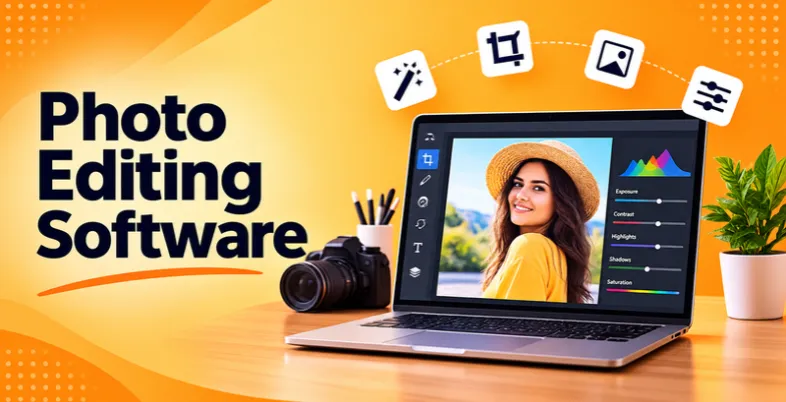
A good photograph can make a strong impression, but achieving the desired result often requires some editing. Images may need colour correction, background removal, skin retouching, or adjustments to lighting and sharpness. Photo editing tools make these tasks easier and help create attractive visuals for websites, product listings, and social media campaigns. The right tools depend on the type of photographs you work with, your experience, and the level of editing you need.
Photo editing software offers a range of features to enhance images, including retouching, RAW processing, and automatic adjustments. Since each application provides different capabilities, it is important to consider your editing skills, budget, and specific requirements before choosing one.
In this guide, we cover 10 of the best photo editing tools in 2026, comparing their key features, advantages, limitations, and ideal users to help you find the right option.
What To Consider Before Choosing Photo Editing Tool
Before selecting a photo editor, consider how you plan to use it. A professional photographer may need detailed RAW processing and colour correction, while a beginner may prefer an easy interface and automatic enhancement tools.
Editing Features
Check whether the software provides the tools you need, such as layers, masking, retouching, background removal, colour correction and AI-powered editing. Advanced features are useful for complex projects, but basic editing tools may be sufficient for everyday photography.
RAW File Support
Photographers who work with DSLR and mirrorless cameras should check RAW compatibility. Good RAW processing helps preserve image details and provides more control over exposure, colours and highlights.
Ease of Use
An easy-to-understand interface makes editing more comfortable, particularly for beginners. Professional software may have a steeper learning curve because it includes more advanced controls.
Performance and Compatibility
Check the software’s system requirements and compatibility with your operating system. Large RAW files, multiple layers and AI tools can require more processing power and memory.
Pricing and Licensing
Photo editors offer different payment models, including monthly subscriptions, annual plans and one-time purchases. Free software is also available for users who want to avoid recurring costs.
Workflow and Organisation
If you edit hundreds of photographs, look for features such as batch processing, photo cataloguing, tagging and file management. These tools can save time when working with large collections. Teams working on shared editing projects may also use team collaboration tools to coordinate tasks, share feedback, and manage creative workflows
Comparison Table Of The Best Photo Editing Software
| Software | Main Capabilities | Key Specialization | Best For |
| Adobe Photoshop | Layer-based editing, retouching, image compositing, and graphic design | Advanced photo manipulation | Professional photographers and graphic designers |
| Adobe Lightroom | RAW photo editing, colour correction, presets, and batch editing | Photo organization and non-destructive editing | Photographers managing large photo collections |
| Affinity | Layer-based editing, RAW development, retouching, and image compositing | Professional photo editing | Photographers and designers seeking advanced editing tools |
| Capture One Pro | RAW processing, colour grading, tethered shooting, and image organization | Professional RAW processing and colour control | Studio photographers and professionals |
| DxO PhotoLab 10 | RAW processing, noise reduction, lens corrections, and local adjustments | AI-powered image enhancement and optical corrections | Photographers working with RAW images |
| ON1 Photo RAW | RAW editing, masking, layers, effects, and photo organization | All-in-one photo editing and management | Photographers looking for an integrated editing workflow |
| ACDSee Photo Studio | RAW editing, image management, retouching, and metadata organization | Photo management and editing | Photographers managing large image libraries |
| Skylum Luminar Neo | AI-powered editing, sky replacement, portrait enhancement, and image retouching | AI-based photo enhancement | Beginners and photographers who prefer automated editing |
| GIMP | Layer editing, image retouching, masking, filters, and custom plugins | Open-source image manipulation | Beginners and advanced users looking for free editing software |
| darktable | RAW processing, colour correction, exposure adjustment, and image management | Open-source RAW photo development | Photographers who prefer free RAW editing tools |
List Of 10 Best Photo Editing Software
1. Adobe Photoshop
- Official Website: https://www.adobe.com/products/photoshop.html
- Best For: Professional image manipulation, advanced retouching and creative compositions.
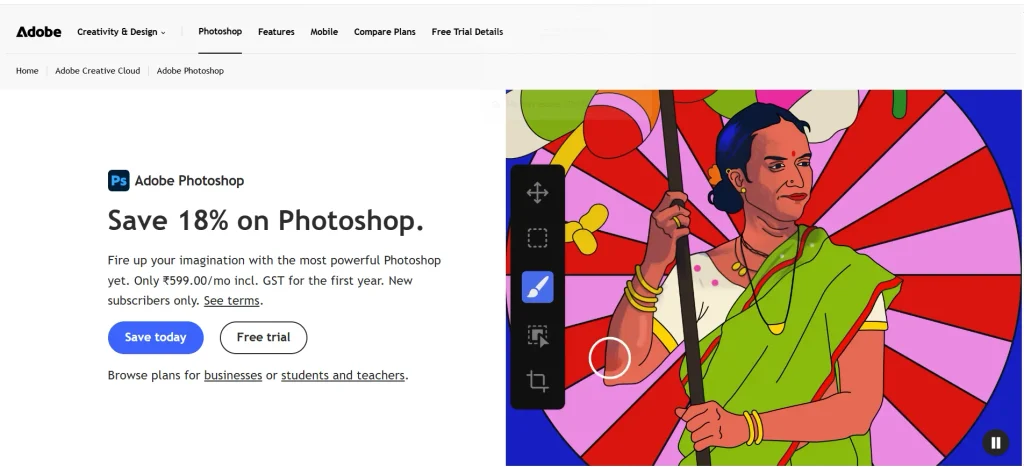
Adobe Photoshop gives photographers and designers detailed control over how their images look. It is also widely used alongside graphic design software to create visual compositions, promotional graphics, and other creative designs. Its editing environment supports layers, masks, selection tools and advanced retouching for creating everything from simple corrections to complex compositions. Users can remove unwanted objects, combine multiple images and make precise adjustments to individual elements. AI-powered features also help speed up tasks such as background replacement and object removal.
Key Features:
- Layers and Masks: Edit separate image elements independently using layers and masks without changing the entire composition.
- Advanced Retouching: Remove unwanted objects, correct imperfections and improve image details with healing and cloning tools.
- AI-Powered Editing: Use Generative Fill and the Remove Tool to add, replace or remove elements from photographs.
- Colour and Image Adjustments: Control brightness, contrast, exposure, colour balance and other image properties.
Pros:
- Provides extensive tools for professional image editing.
- Supports detailed layer-based editing and masking.
- Offers advanced retouching and selection options.
- Includes AI tools that simplify several editing tasks.
Cons:
- Beginners may need time to understand its interface.
- Advanced features require practice to use effectively.
- Requires a paid plan for the full desktop experience.
- Complex projects can require a computer with good processing power.
Pricing:
- ₹999/month – Annual plan, billed monthly (limited-time offer).
2. Adobe Lightroom

- Official Website: https://www.adobe.com/products/photoshop-lightroom.html
- Best For: RAW photo editing, colour correction and organising large image collections.
For photographers who handle hundreds of images, Adobe Lightroom offers editing and organisation tools within one workflow. This photo editing software focuses on RAW processing, exposure adjustments, colour correction and maintaining consistent results across photographs. Users can apply presets, edit multiple images and organise their collections into albums. Its non-destructive editing system also allows adjustments without permanently changing the original files.
Key Features:
- RAW Photo Processing: Adjust exposure, highlights, shadows, white balance and other settings while working with RAW images.
- Colour Grading: Fine-tune colours, tones and saturation to create a consistent visual style.
- Presets: Apply ready-made editing settings or create custom presets for a repeatable editing workflow.
- Photo Organisation: Manage images through albums and collections, making photographs easier to search and access.
Pros:
- Offers a strong workflow for RAW photography.
- Makes it easier to manage large photo collections.
- Presets help maintain consistent editing styles.
- Non-destructive editing keeps original photographs intact.
Cons:
- Advanced image manipulation is more limited than Photoshop.
- Subscription costs may not suit every user.
- Beginners may need time to understand its editing controls.
- Some features depend on the selected version and plan.
Pricing:
- ₹999/month – Annual plan, billed monthly (limited-time offer).
3. Affinity
- Official Website: https://www.affinity.studio/photo-editing-software
- Best For: Professional photo editing, retouching and creative design.
Affinity brings photo editing, vector design and layout capabilities together in one creative application. Its photo editing workspace includes RAW development, retouching, masking and layer-based adjustments. Users can create detailed compositions while keeping many editing changes reversible. It is a useful option for photographers and designers who want access to a range of creative tools in one place.
Key Features:
- Non-Destructive Editing: Apply adjustments, filters and masks while keeping the original image unchanged.
- RAW Development: Process RAW photographs with controls for exposure, colour, image details and lens-related adjustments.
- Advanced Retouching: Use healing, inpainting and cloning tools to remove imperfections and improve photographs.
- Layers and Masking: Build detailed compositions with adjustment layers, blend modes, layer groups and masking options.
Pros:
- Provides professional photo editing capabilities.
- Includes RAW development and advanced retouching.
- Supports non-destructive adjustments and layer-based workflows.
- Combines photo editing with vector and layout tools.
Cons:
- New users may need time to learn its different workspaces.
- Its interface may feel complex for basic editing tasks.
- Some advanced workflows require practice.
- Users familiar with other editing applications may need time to adjust.
Pricing:
- Free plan available
4. Capture One Pro
- Official Website: https://www.captureone.com/
- Best For: Professional photography, accurate colour editing and tethered studio shooting.
Capture One Pro is built around the needs of photographers who require precise image quality and colour control. It is particularly useful in studio, commercial and product photography workflows. The software offers RAW processing, advanced colour adjustments and tethered shooting capabilities. These tools help photographers review images during a shoot and maintain consistent results across a collection.
Key Features:
- RAW Image Processing: Adjust exposure, sharpness, detail and colour while working with RAW files.
- Advanced Colour Editing: Fine-tune individual colours and tonal ranges to achieve accurate and consistent results.
- Tethered Shooting: Connect a compatible camera to a computer and capture photographs directly into the software for immediate review.
- Layers and Masking: Apply local adjustments through layers and masks to edit specific areas independently.
Pros:
- Provides detailed colour adjustment capabilities.
- Supports professional RAW photography workflows.
- Tethered shooting is useful for studio photography.
- Offers advanced local editing and masking tools.
Cons:
- The interface can be challenging for beginners.
- Subscription plans may be expensive for casual users.
- Some advanced features take time to understand.
- May offer more tools than needed for basic photo editing.
Pricing:
- Pro – ₹1,375/month
- All in One – ₹1,949/month
- Studio – ₹7,377/month
Also read:
5. DxO PhotoLab 10
- Official Website: https://www.dxo.com/en/dxo-photolab/
- Best For: RAW processing, noise reduction and camera-lens corrections.
DxO PhotoLab 10 focuses on improving image quality through advanced RAW processing and optical correction tools. This photo editing software helps photographers recover fine details, reduce noise and maintain natural-looking colours, especially in challenging lighting conditions. Its masking tools make selective adjustments easier, while U Point technology provides additional control over specific image areas. The software also includes depth-based selections and colour grading options for more precise editing.
Key Features:
- DeepPRIME Noise Reduction: Reduce image noise while recovering fine details and maintaining natural textures.
- AI and Depth Masks: Select subjects and areas based on their position in a scene for more targeted adjustments.
- U Point Technology: Make local adjustments based on colour and tonal information without creating complex manual selections.
- Advanced Colour Grading: Adjust shadows, midtones and highlights independently to control the overall appearance of an image.
Pros:
- Provides advanced RAW processing capabilities.
- Offers effective noise reduction for low-light photographs.
- Includes precise local adjustment and masking tools.
- Supports camera and lens corrections for improved image quality.
Cons:
- Beginners may find its advanced controls difficult to understand.
- The software focuses more on photography than graphic design.
- Its one-time purchase price is relatively high.
- Detailed compositing may require additional editing software.
Pricing:
- Starting – $129.99
- New license – $249.99
6. ON1 Photo RAW
- Official Website: https://www.on1.com/products/photo-raw/
- Best For: RAW editing, photo organisation, layers and AI-powered enhancement.
ON1 Photo RAW combines several photography tools in a single application, reducing the need to switch between separate programs. It supports RAW processing, photo browsing, creative effects and layer-based editing. Its AI-powered features help with tasks such as noise reduction, portrait enhancement and removing unwanted objects. This combination makes it useful for photographers who want to manage and edit their images within one workflow.
Key Features:
- RAW Processing: Edit RAW photographs with controls for exposure, colour, sharpness and image details.
- AI Editing Tools: Use AI-powered features for noise reduction, image enhancement and removing unwanted objects.
- Layers and Effects: Combine images, apply creative effects and use layers to create detailed compositions.
- Photo Organisation: Browse folders, organise images and manage photography collections.
Pros:
- Combines several photo editing functions in one application.
- Offers RAW processing and layer-based editing.
- Includes AI-powered enhancement and retouching tools.
- Provides photo browsing and organisation features.
Cons:
- The number of tools may feel overwhelming to new users.
- Advanced AI features can require suitable system resources.
- Some features may take time to understand and configure.
- Users who prefer a simple editor may find its workflow unnecessarily detailed.
Pricing:
- Photo RAW – $99.99
- Photo RAW MAX – $169.99
7. ACDSee Photo Studio

- Official Website: https://www.acdsee.com/
- Best For: Managing large photo libraries, RAW development and image editing.
ACDSee Photo Studio brings photo management and image editing together for users who work with large collections of photographs. It provides tools for organising files, managing metadata, searching images and making detailed adjustments. Photographers can also use its RAW development, retouching and colour correction features to improve their pictures. AI-assisted editing tools add further options for selecting subjects and making specific changes.
Key Features:
- Photo Management: Organise images using categories, keywords, ratings and metadata to find photographs more easily.
- RAW Development: Edit supported RAW files with controls for exposure, colour, lighting and other image properties.
- AI Editing Tools: Use available AI features for subject selection, background selection, object removal and image enhancement.
- Retouching and Colour Correction: Improve photographs with healing, cloning, curves, colour adjustments and lighting controls.
Pros:
- Combines photo organisation and editing features.
- Offers support for a wide range of camera RAW formats.
- Includes useful search and metadata management tools.
- Provides retouching, colour correction and AI-assisted features.
Cons:
- The interface may take time to learn.
- Some advanced features depend on the selected edition.
- Its management tools may be unnecessary for casual users.
- Switching from other editing software may require some adjustment.
Pricing:
- Photo Plan – $79.99/year
- Complete Plan – $99.99/year
8. Skylum Luminar Neo
- Official Website: https://skylum.com/luminar
- Best For: AI-powered photo enhancement, portrait editing and creative effects.
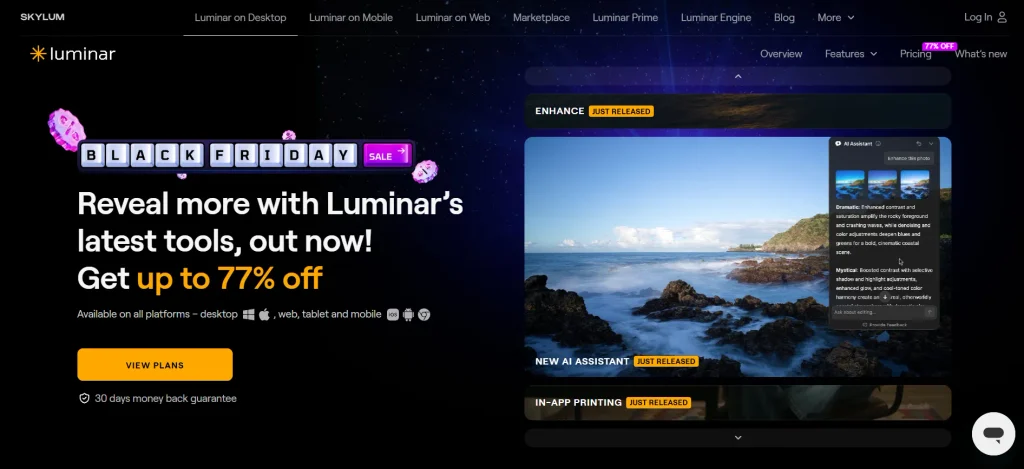
Skylum Luminar Neo makes photo enhancement more accessible through AI-assisted editing tools. This photo editing software helps users improve portraits, landscapes and everyday photographs without manually adjusting every image element. Features such as sky replacement, automatic enhancement and portrait adjustments can simplify several creative editing tasks. It also supports RAW files, layers and masking for users who want additional control over their photographs.
Key Features:
- Enhance AI: Analyse photographs and automatically adjust elements such as exposure, contrast, shadows and colour.
- Sky AI: Detect and replace the sky in a photograph while making adjustments for a more natural appearance.
- Portrait Editing: Improve facial details and skin appearance using AI-assisted portrait tools.
- Layers and Masking: Combine images and apply adjustments to selected areas using layers and masking tools.
Pros:
- AI tools make several editing tasks quicker.
- Offers specialised features for portraits and landscapes.
- Provides RAW support and creative editing options.
- Its interface makes many adjustments accessible to beginners.
Cons:
- Some advanced AI features may require additional processing power.
- Automatic adjustments may need manual refinement.
- Users who prefer traditional editing may not need all its AI tools.
- Available features can vary depending on the selected package.
Pricing:
- Desktop Only – ₹3,999
- All Platforms – ₹4,499
- Max (one-time payment) – ₹5,999
9. GIMP
- Official Website: https://www.gimp.org/
- Best For: Free image manipulation, photo retouching and creative compositions.
GIMP, short for GNU Image Manipulation Program, is an open-source application for editing and manipulating digital images. It provides a range of tools for retouching photographs, creating compositions and working with different image elements. Users can make detailed changes through layers, masks, selection tools and image adjustments. Its plugin support also allows users to extend the software’s capabilities for different creative tasks.
Key Features:
- Layer-Based Editing: Use layers and masks to combine images, apply adjustments and create complex compositions.
- Photo Retouching: Remove imperfections, correct image details and improve photographs with available retouching tools.
- Selection and Transformation Tools: Select specific image areas, resize elements, crop photographs and transform objects.
- Plugins and Customisation: Extend the software’s capabilities through supported plugins, scripts and custom workflows.
Pros:
- Completely free and open-source software.
- Provides useful tools for photo editing and image manipulation.
- Supports layers, masks and customisation.
- Can be extended with community-developed plugins.
Cons:
- Beginners may find the interface less intuitive.
- Some advanced workflows may require additional plugins.
- Its RAW editing workflow is less integrated than dedicated RAW processors.
- Users accustomed to commercial editing software may need time to adjust.
Pricing:
- Free plan available
10. darktable

- Official Website: https://www.darktable.org/
- Best For: Free RAW photo processing and non-destructive editing.
darktable is designed for photographers who want detailed control over RAW image development without paying for editing software. It provides tools for adjusting exposure, colour, contrast and image details while keeping the original photographs unchanged. Its non-destructive workflow allows users to experiment with different settings and revisit adjustments whenever needed. The application also includes photo organisation and colour management features for managing photography projects.
Key Features:
- RAW Image Processing: Work with RAW photographs and adjust exposure, white balance, colour and other image properties.
- Non-Destructive Editing: Apply editing instructions without permanently changing the original image file.
- Colour Management: Use colour management tools and supported profiles to maintain consistency across displays and output formats.
- Photo Organisation: Browse and manage image collections using tools designed for photography workflows.
Pros:
- Completely free and open-source.
- Offers advanced RAW processing tools.
- Uses a non-destructive editing workflow.
- Supports colour management and GPU-accelerated processing on compatible systems.
Cons:
- The interface can be difficult for beginners.
- Its workflow may take time to understand.
- It is primarily designed for photography processing rather than graphic design.
- Some editing tasks may require additional software.
Pricing:
- Free plan available
How To Choose The Best Photo Editing Software For Your Needs?
The best photo editor depends on the type of images you work with, your editing experience and the features you need. Instead of choosing software only because it is popular, consider how well it fits into your regular workflow.
- For Professional Image Manipulation: Adobe Photoshop is a strong option for users who need layers, detailed retouching, masking and complex image compositions.
- For RAW Photography: Adobe Lightroom and DxO PhotoLab 10 are suitable for photographers who want detailed control over RAW files, exposure and image quality.
- For Professional Creative Editing: Affinity provides photo editing, retouching and design tools for users who need more than basic image adjustments.
- For Studio Photography: Capture One Pro is worth considering for its colour controls and tethered shooting workflow.
- For AI-Powered Editing: Skylum Luminar Neo and ON1 Photo RAW offer AI-assisted tools that can speed up common editing tasks.
- For Photo Organisation: ACDSee Photo Studio is a practical choice for users who need to manage large image collections alongside editing. Similarly, creators who combine edited photographs with user-generated videos can use UGC video platforms to organise and manage video content as part of their broader content workflow
- For Free Image Editing: GIMP provides tools for image manipulation and retouching without a paid licence.
- For Free RAW Processing: darktable provides RAW development and non-destructive editing tools without a paid licence.
Before making a decision, check the software’s system requirements and try its available trial or free version when possible. This gives you an opportunity to understand the interface and test whether the editing workflow suits your needs.
Conclusion
The right photo editing software depends on the kind of images you work with and the level of control you expect during editing. While some applications provide advanced tools for detailed retouching and creative image manipulation, others make it easier to process RAW files, organise photographs, or enhance images with AI-based features. There is no single solution that works equally well for every user.
The software covered in this guide offers a range of options for different experience levels, editing styles, and budgets. Before choosing one, consider the features you will actually use, the learning curve, supported file formats, and overall cost. A tool that fits your regular editing workflow will make it easier to work with images and achieve consistent results.
Frequently Asked Questions
1. Which Is The Best Photo Editing App In 2026?
Adobe Photoshop is a strong choice for advanced image manipulation, while Lightroom is suitable for RAW editing and photo organisation. The best option depends on your editing requirements.
2. Which Photo Editing Tool Is Completely Free?
GIMP and darktable are completely free and open-source photo editing applications. They offer different tools for image manipulation and RAW processing.
3. What Is The Difference Between Photoshop And Lightroom?
Photoshop focuses on detailed image manipulation, layers, retouching and creative compositions. Lightroom is designed mainly for RAW processing, colour adjustments and organising photo collections.
4. Which Photo Editing Tool Is Best For RAW Images?
Adobe Lightroom, Capture One Pro and DxO PhotoLab 10 are popular choices for RAW processing. darktable is a free alternative for users who want RAW editing tools.
5. Is Paid Photo Editing Tool Better Than Free Software?
Not necessarily. Paid software may offer specialised tools and integrated workflows, but free applications such as GIMP and darktable can handle many editing tasks. The right choice depends on the features you need.